Transform Notepad++ to A Powerful Multi Language IDE
Discover how you can use your favourite editor, Notepad++, as a powerful IDE to compile C, C++, Java, C# and Python code. A must know-how for Developers!
 Jatin Kumar Malik First published on
 BitSnapper
Notepad++ is a free and powerful text editor which is making the work for developers and programmers so easy to edit code in multiple programming languages without shifting to another specific language text editor to edit or write the code.
It has the great support of numerous plugins to make you even more productive.
First thing first:
At the end of the Post you will be able to:
- Compile and run any language code with just using a common shortcut for all languages (I personally like
ALT+Zbecause keys are closer …lazy coders :P ) - If you only want to compile the code with a shortcut that’s cool too ( like
ALT+C..see ..again laziness) - If you choose to only run the program with shortcut that’s fine (like
ALT+Xor anything less lazy 😁 )
The shortcuts you will set will work for all languages. The Script which I’ll provide automatically detects the compiler for the corresponding language and run the program.
There are 2 ways by which you can see the output of a program:
1. Inside the Console window of Notepad++:
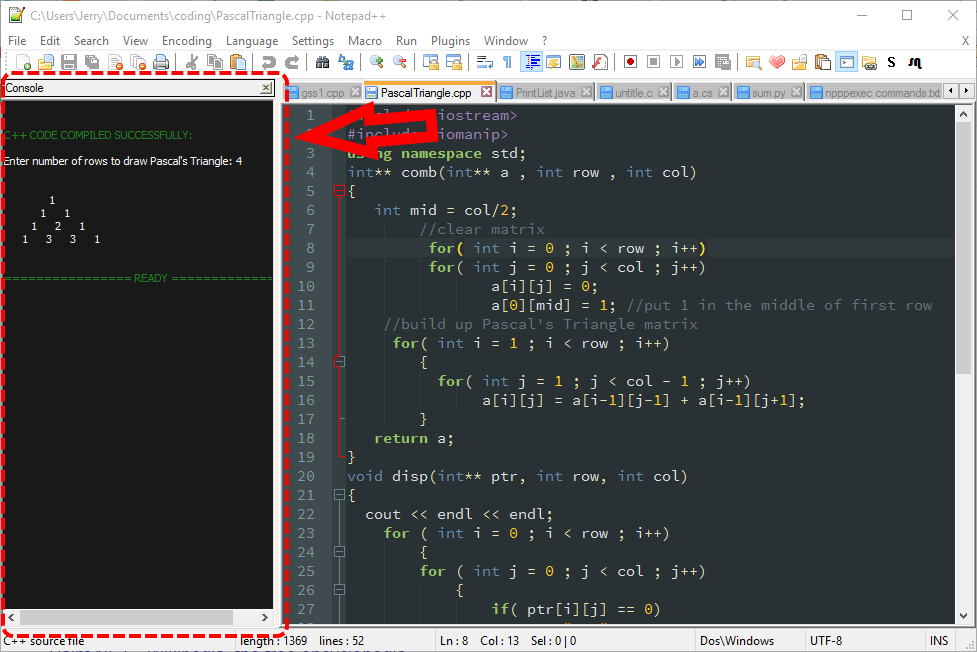
Ain’t that cool?
2. Or in Command prompt of Windows:
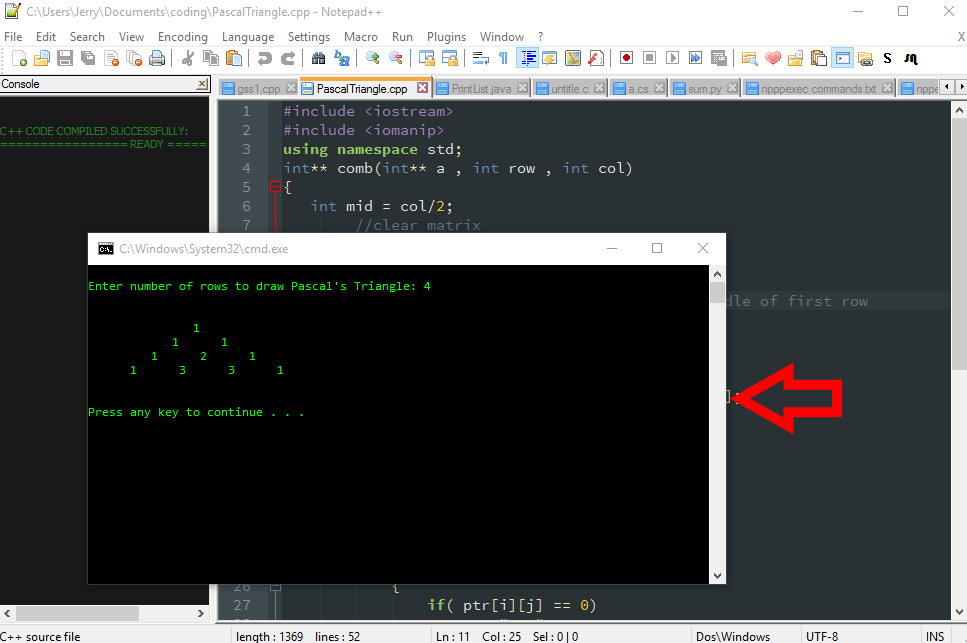
Patterns! Nostalgic much?
I personally like to see the compilation errors (if any) in Notepad++ console but run the program in cmd ( yup! we can configure this too :D )
So, let’s build the stuff:
1. Install Notepad++ from here and install it.
Bonus step:
- Apply some dark theme in Notepad++ (to feel more geekish :D )
- Go to
Notepad++ -> Settings -> Style Configuratorthen follow below image to set theme:
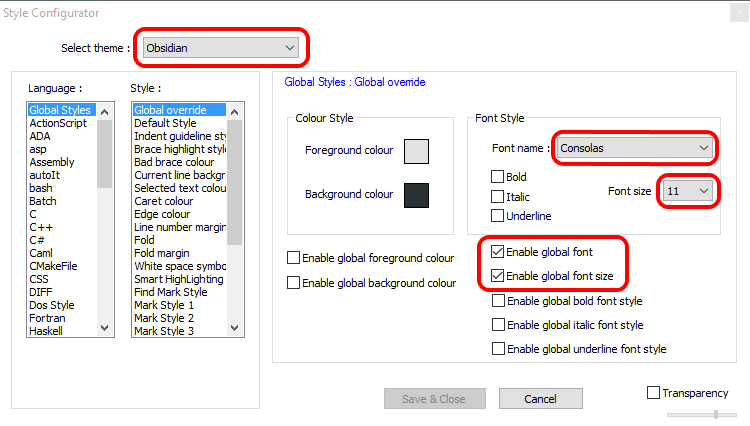
Dark themes = Coder’s love!
2. Install a plugin called ‘NppExec’:
This plugin lets you create command macro within a built-in console of Notepad++ and prints the results in that console
- Go to
Notepad++ -> Plugins -> Plugin Manager -> Show Plugin Manager - Find
Npp_Exec, install it and restart Notepad++
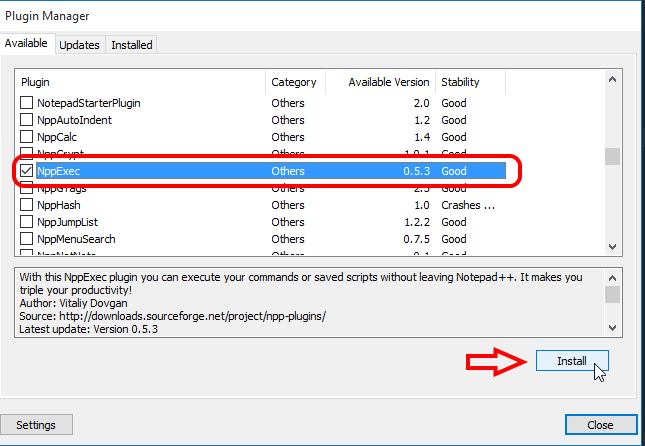
As simple as 1, 2 & 3.
3. Install necessary Compilers and set PATH of Compilers in ‘System Variables’.
3.1 Download compilers for languages you want to run:
The script will still work properly if you skip some compilers.
( I’m looking at you C/C++ Coders 😈 )
For Java:
- Download latest “JDK” from here (install JDK not JRE) (~200MB)
For C/C++:
- Download and install “Orwell Dev-C++ IDE” from here (~50MB)
This C++ IDE includes a stable compiler for C/C++ which we’ll use from NotePad++ to compile and run C/C++ code (you can also find and install some other variant of C++ compiler)
For C#:
- No need to install Visual Studio, Windows comes with built-in .NET compiler 😎
For Python:
- Install python from here (~25MB)
3.2 Setting PATH of Compiler in ‘System Variables’:
- Right click on
Computer -> Properties -> Advance System setting -> Environmental Variablesunder ‘System Variables’ find ‘Path’ and Click ‘Edit’:
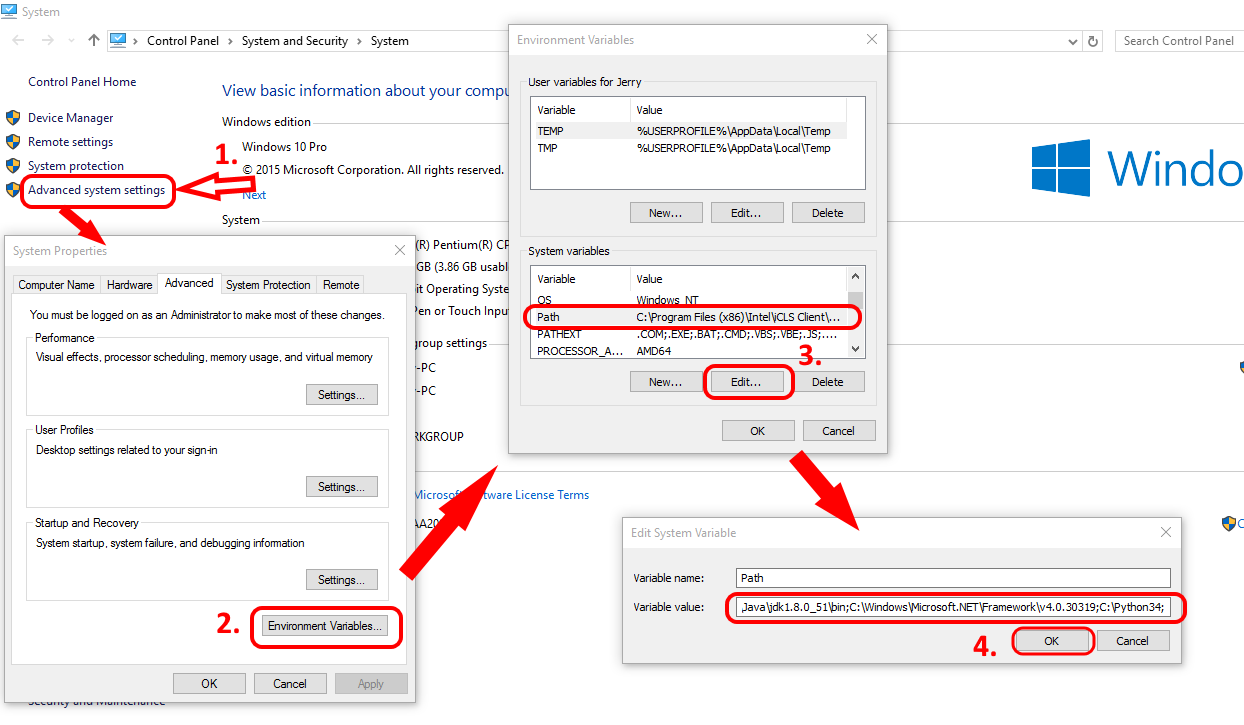
Setting system path is important.
- Now, append the Path of Compilers in ‘variable value’ field. Add paths at the end of the line (do not delete the existing text!)
- Before adding the paths please check the correct Path It may be different for your PC!
- Semi colon (;) symbol is important after the each path as It marks the end of the previous path so you can add a new one.
For C/C++:
C:\Program Files (x86)\Dev-Cpp\MinGW64\bin;
For Java:
C:\Program Files\Java\jdk1.8.0_51\bin;
For C#:
C:\Windows\Microsoft.NET\Framework\v4.0.30319;
For Python:
C:\Python34;
Update: There is a direct way to add new paths in the latest update of Windows 10. Click on the ‘New’ button to add paths:
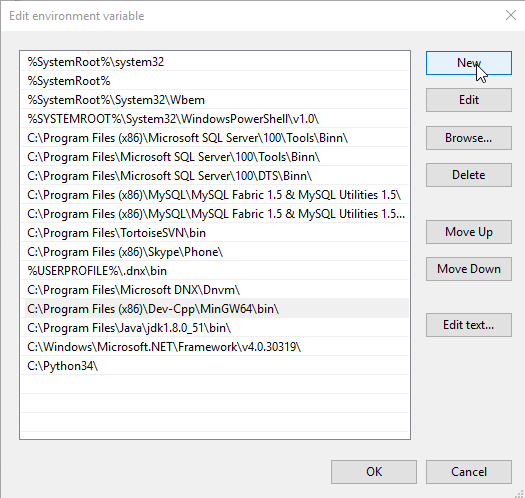
Adding Environment Variables in Windows 10
You can check these paths by opening CMD and typing gcc for C/C++, Java for java, csc for C#, python for Python (one at a time):
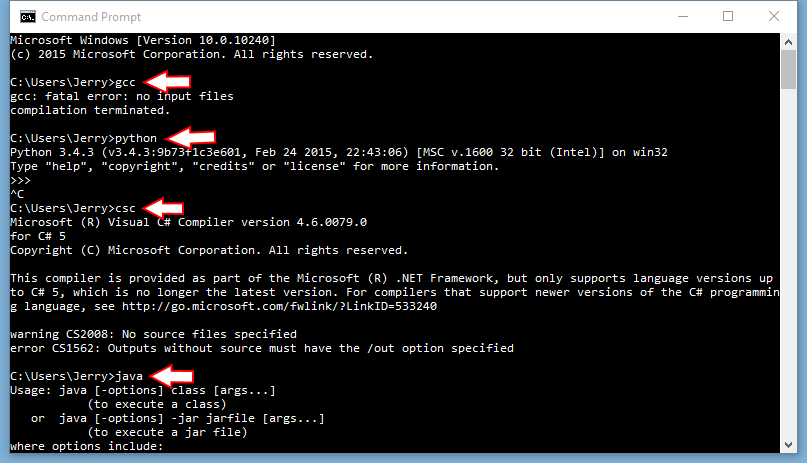
Looks like we are ready?!
4. Copy Pasting script in Notepad++ folder:
- Open Run using
WIN+Rwrite%appdata%and hit enter. - Now navigate to
Notepad++ -> plugins -> configfolder in PC. - Download NppExec script and extract files in config folder (replace NppExec.ini).
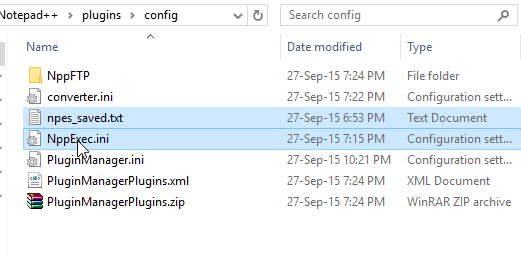
Extracting the NppExec script
5. Set shortcut:
This is the final step ( I promise :P ) to set the desired shortcuts in Notepad++.
- Go to
Settings-> Shortcut mapper. - Select Plugin commands and scroll to the bottom of the list.
- There you can set the desired shortcuts for scripts.
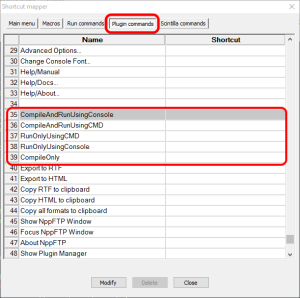
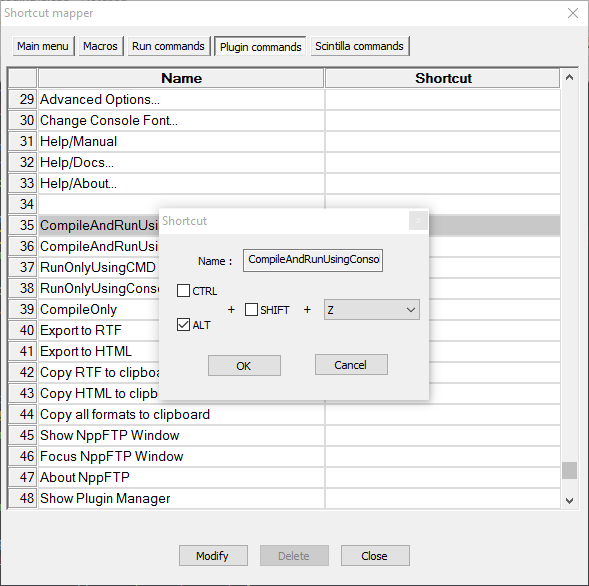
That’s all folks!
Now you can create a new file in Notepad++ CTRL+N for writing code of C/C++/Java/C#/Python or open an existing code file and compile/run with your shortcuts. Make sure to save the file with proper extension like .c / .cpp / .cs / .java /.py instead of .txt
(For geeks)
Complete repository of NppExec scripts can be found here:
https://github.com/JerryGoyal/Notepad-plus-plus-NppExec-plugin-Multiple-Languages-Compile-and-Run-Scripts/
Currently, this script support C, C++, Java, C# and Python Language. Comment below and let us know if you want support for any additional language :)
Happy Coding!
Keep reading
How to get Chrome like Tabs in File Explorer on Windows 10/8/7?
Discover how you can enable Tabs in File explorer in Windows 10/8/7 & be productive like a boss! One Window session to rule them all.

How to disable ads from uTorrent like a pro?
Admit it! Web user like us hates ads to the core! They are just omnipresent. Discover how to disable ads from uTorrent & make p2p file sharing a breeze?
iOS 101: Day 0 | Setting up the garage
Welcome to your first tutorial for iOS 101! Learn how to setup development environment on your Mac before you start shipping out kickass iOS apps. Dive in!
44 commentsfrom BitSnapper
Carried over from the original post and read-only. Add a new comment below.
Hi gourav. Real interesting post here. I never knew we can use Notepad++ as IDE. I always used to use NPP to copy paste the code to IDE.
Good post. keep writing more stuff like this.
thanks Evan. keep visiting the site for more surprises :)
Notepad++ is love. :D
Hi Gaurav,
I followed all the steps.
I am writing a C code, when I execute from console, it expects all scanf values and then only it shows print statements.
For example:
#include
void main() {
int a;
printf("Enter a");
scanf("%d", %a);
printf("Value of a = %d", a);
}
=> Ouput in console:
C CODE COMPILED SUCCESSFULLY:
333
Enter a:
Value of a = 333
So, printf does not get executed unless we enter scanf value.
Kindly help.
Thanks.
Hi Ganesh,
Actually console of notepad++ is buffering the output data (printf) till all the input commands are executed. It's kind of limitation of notepad++ console when running C files.
But, we can disable the buffering of data from notepad++ console by explicitly writing setvbuf(stdout, NULL, IONBF, 0); in c code.
for example:
#include
void main() {
setvbuf(stdout, NULL, IONBF, 0); // Add this line
int a;
printf(“Enter a”);
scanf(“%d”, %a);
printf(“Value of a = %d”, a);
}
Now your program will work as it should.
ps: I even discussed about this problem on NppExec author's page but no solution found except from adding setvbuf(stdout, NULL, IONBF, 0); in C code.
https://sourceforge.net/p/npp-plugins/discussion/672146/thread/6b6e09cf/
Hi Gourav,
Thanks a lot.
Adding setvbuf(stdout, NULL, _IONBF, 0);
solved the problem :)
I always used Linux for programming earlier so wanted similar kind of thing on Windows.
I was frustrated by using other Editors like VC++, etc where we waste time in creating a new project and 10 different things to get output :D
So, I really wanted this kind of editor for Windows. Thanks again!
One more small issue,
I have set the notepad to auto complete opening symbols like (, {, [, <, ".
But by mistake if we close it ourselves, then it should consider it as a closing symbol and overwrite it.
(For example, try the same on koding.com. If you close the symbol, it immediately overwrites its own closing symbol. Is there any setting in Notepad++ for the same?
Thanks.
Hi,
Yes, notepad++ is a handy tool to quickly create and run codes. Before that, I used to run C/C++ files in Dev-C++ which is also good to directly run C/C++ files w/o creating the project. The limitation was that it could only run C/C++ files so, created a script in Notepad++ to run different codes. Pretty lazy uh :)
Regarding that automatically deletion of brackets, I don't think notepad++ supports it (as of now)
I get a "gcc: error: 1:No such file or directory"
I've tried running it npp as administrator, didn't work.
Never mind, I solved it. Apparently gcc can not handle spaces in file name.
thx alot
Hey Gourav
All set with compiling, but when it comes to the part of output i am not getting it. when i compile and run with console, it says compilation successful but no output is seen in the console window.
my environment variables are
C:\Users\somu\gcc\bin;C:\Users\somu\gcc\libexec\gcc\i686-pc-mingw32\5.2.0;C:\ProgramData\Oracle\Java\javapath;C:\WinAVR-20100110\bin;C:\WinAVR-20100110\utils\bin;c:\Software\octave3.6.4\bin;C:\Program Files\Qucs\bin;C:\Windows\system32;C:\Windows;C:\Windows\System32\Wbem;C:\Windows\System32\WindowsPowerShell\v1.0\;C:\Program Files\MATLAB\R2012a\runtime\win32;C:\Program Files\MATLAB\R2012a\bin;C:\Program Files\HI-TECH Software\PICC-Lite\9.50\bin;C:\Program Files\HI-TECH Software\PICC\9.83\bin;C:\MinGW\bin;C:\MinGW\msys\1.0\bin;
Hi Somu,
I don't think it depends on env. variables because if gcc can compile the program then it can run also.
1. Try running a different program because there could be a runtime exception in your program for which you don't see any output.
2. Try running your program in CMD instead of notepad++ console.
3. Make sure you're hitting the correct shortcut to run the program not just to compile.
If still problem persists then let me know :)
Node.js would be awesome ^_^
This is great! I am so excited to use notepad++ to compile and run C++ programs. I am having a problem that I hope you can help me with. This sequence does not work for me:
CompileAndRunUsingConsole
RunOnlyUsingConsole (fails here with beep and no change to console output)
Nor does this sequence:
CompileOnly
RunOnlyUsingConsole
RunOnlyUsingConsole (fails here with beep and no change to console output)
However, this does work:
CompileAndRunUsingConsole
CompileAndRunUsingConsole
Is there a way for me to run my C++ program multiple times without having to compile again?
Thanks for your script and help!
Hi Madge,
apologies for the late reply.
The sequence is working absolutely fine for me. Try running a different program or wait for the 1st command to complete successfully then hit the 2nd command.
Hello,
When i try to run my program it says File Saved and Ready. But it doesn't run, the console nor the CMD opens up. Why?
make sure you are saving the file with proper extension i.e. *.cpp or *.c or *.java etc
Hi Gourav, Ganesh here again!
On my laptop, this works perfectly.
Now, I tried the same on another laptop having same OS, I am getting following error on the Console:
CreateProcess() failed with error code 2:
The system cannot find the file specified.
================ READY ================
What could have gone wrong.
I have installed c++ compiler properly, set the environment path as shown by you.
Kindly let me know any hack/solution over this.
Thanks.
Hi Ganesh,
I believe the error is because of incorrect /missing path of environment variables.
Could you please verify the path of C++ by typing 'gcc' in console.
Hi Gourav,
I got the issue!
Problem was even after installing Dev C++, updating environment variable; I was not able to execute the program.
Issue was: I had given space in environment variable. So, in PATH environment variable, the path should be separated only with semi-colon; not SPACE;
Thanks.
hii...the plugin was not present n plugin manager to install...so i installed it from net...i even extracted the script of the plugin...but in the end it is not showing compile and run in console in plugin commands...what should i do...???
Hi, can u tell how to use notepad++ to run vhdl codes ?
Right now notepad++ doesn't run vhdl code. If a find a way to run vhdl then I'll surely update the post :)
Hey,
I'm having an issue making the path for the C++ compiler. I made the path the way I was supposed to, and even checked the path within my computer, but when I go into the cmd and type in gcc, it puts out this message:
'gcc' is not recognized as an internal or external command, operable program or batch file.
I'm not exactly sure what this means, or how to fix it. Is there something I did wrong or just completely missed?
Thanks.
Hi Noelle,
This means C++ compiler is not installed on your computer yet.
You can download and install it from here : http://orwelldevcpp.blogspot.in/
Hey Gourav,
I've downloaded it for a second time, but it looks like it doesn't want to install. I'm not sure if I selected something incorrectly or if it chose the wrong file, but it downloads the Dev-C++ 5.11, but doesn't install anything. What went wrong?
Thanks
can you check for the path "C:\Program Files (x86)\Dev-Cpp\MinGW64\bin".
If the path is missing that means you haven't installed it yet.
To install Dev-C++ you have to double-click the downloaded file to install it.
Let me know if you are still facing any problems :)
I've checked the path and I wrote it down correctly, but it still doesn't work. I also noticed something that you don't seem to have, "C:\Program Data\Oracle\Java\javapath". I didn't put it in there, but it works with my command window, even though I don't have "C:\Program Files\Java\jdk1.8.0_51\bin" as a path, yet. Could this have anything to do with why the Dev-C++ isn't installing?
"C:\Program Data\Oracle\Java\javapath" is nowhere related to Dev-C++ installation. It's path for Java not C/C++.
Can you tell me the error which you are getting while installing Dev-C++?
I don't get an error while installing it, but I think I figured out how to get around it. Thank you though.
Oh! that's great.
Happy Coding :)
Hi Gourav,
Consecutive runs of C program leads this error many times:
C:\\a.exe
Access is denied.
c:/mingw/bin/../lib/gcc/mingw32/4.8.1/../../../../mingw32/bin/ld.exe: cannot open output file a.exe: Permission denied
collect2.exe: error: ld returned 1 exit status
Is there a known solution for this?
One workaround is, save the program again and run.
hi gourav,
could you please explain to me step 3.2. am i supposed to type in the path where i have installed the compiler after the semicolon?
[Now, append the Path of Compilers in ‘variable value’ field. Add paths at the end of the line (do not delete the existing text!)
Before adding the paths please check the correct Path It may be different for your PC!
Semi colon (;) symbol is important after the each path as It marks the end of the previous path so you can add a new one.]
ok thank you. i figured it out.
Please pay attention here......
gcc: error: 1: No such file or directory
================ READY ================
RUNNING PYTHON SCRIPT IN CMD:
python: can't open file 'new': [Errno 2] No such file or directory
================ READY ================
i follow every step carefully but its not working these errors are occurring, pleaseeeeee help me!
Great tutorial - I'm learning to code Python with my son and this is simple enough that we can both follow it.
Thanks heaps
Vivian
Glad we could help, buddy.
This is great, however, it only seems to work with the 32-bit version of Npp. Has anyone got it working for 64-bit?
:)
Hi Gourav,
I have set-up N++ following your tips, and double checked... But I guess something went wrong.
I try to compile and run a very simple program:
#include
int main(){
printf("Hello world");
return 0;
}
And what I get in the console is:
FILE SAVED
===========READY===========
What is going wrong??
Tx!!
Antonio.
I wanted to set this up at work, but since I don't have administrator access, I couldn't add the paths. Instead, I added them to the file you made. I can run a C# program without issues. I didn't even know that the compiler is on every Windows machine by default. I probably won't be able to install any other compilers, but this is really great! Until now, I could only make things in VBA (sometimes without even needing Office itself). This will open doors...
Just a pity the IT guys are sitting right behind me. Might actually close some doors if I'm not careful.
Hey Paul (not the one I know, another Paul), I wish I could help you to circumvent Administrator access but I guess it is there for your own good. :D
How do I do this for the Visual Basic setting?
Thanks!
Amazing, this post will be so impressive! I learned
so much fresh, thank you for always bringing
us all valuable and significant content. This is basically the just
website I need to read such as, ever. Aside from maybe https://ideenkicker.ch/magic-manastrike-hits-pre-registration/, they also strive for the finest.
Leave a comment