Android 101 : Day 1 | Building Your First App
Learn how to start Building Your First App for Android smartphones by following this uber cool Android 101 guide. It's time to say - Hello, World!
 Jatin Kumar Malik First published on
 BitSnapper
Welcome to our Second Tutorial for Android Application Development. Today you will be Building Your First App - a simple “Hello World” Application. But first we will learn how to set up an Android Emulator, Use Dalvik Debug Monitor Service (DDMS) to get list of connected devices, and finally we’ll run our Application on the Connected device. I have already explained how to Set up the Development environment for Android in our last tutorial. For those who have not yet Set up their Development Environment, are recommended to go through it.
Well, let’s get Started with our today’s tutorial.
What is an Android Emulator ?
The Android SDK provides a Virtual Mobile Device Emulator that you can prototype, test, and develop Android applications without the need for a physical device. But before launching the emulator, you must create an Android Virtual Device (AVD) which defines the system image and device settings used by the emulator.
Setting Up the Android Emulator
Here are the steps to Set up the Android Emulator :
- In Eclipse, select Window > AVD Manager.
- Click New
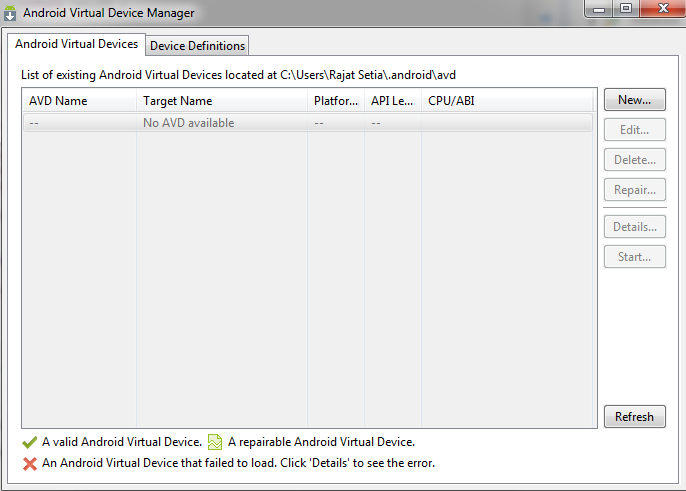
Create new AVD dialog box appears
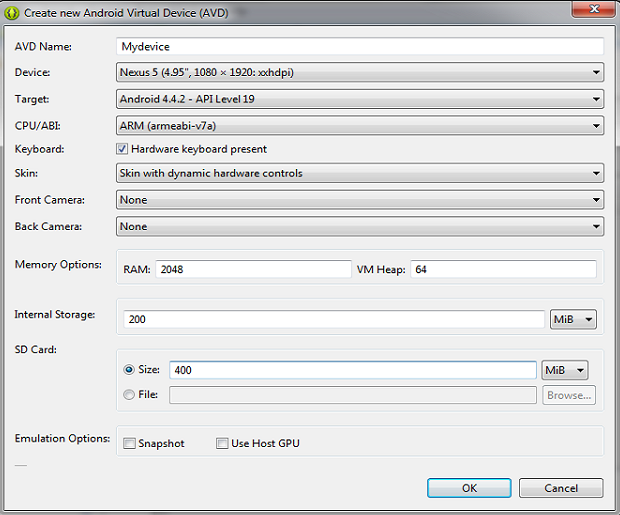
- Type the name of the AVD, say Mydevice.
- Choose a target (Platform you want to run on the emulator. It can be either Android API or Google API.)
- [Optional] Enter the SD card size, say 400.
- [Optional] Snapshot : Enable this to make start up of emulator faster.
- [Optional] Select required Skin.
- [Optional] You can add specific hardware features of the emulated device by clicking the New… button and selecting the feature.
- Click OK.
- To launch the Android Emulator, open AVD Manager > Select Device > Start.
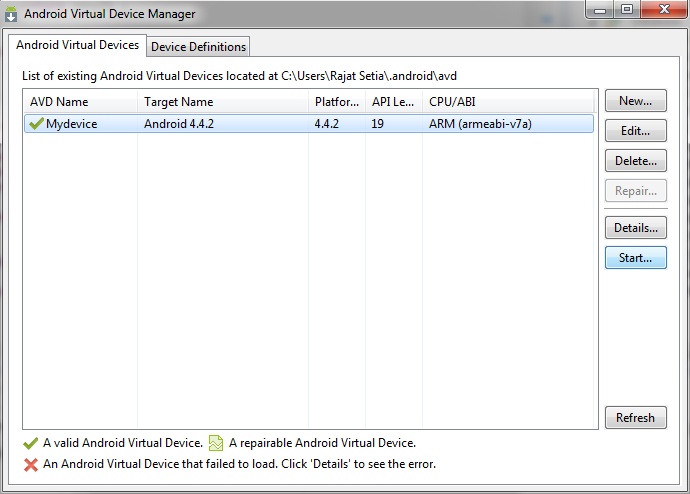
Launch options dialog box appears
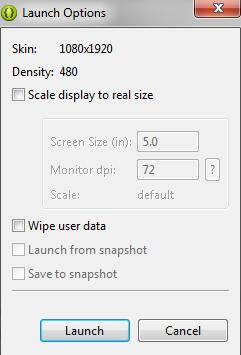
Click on Launch to launch the Android Emulator.
DDMS Perspective
The DDMS Perspective in Eclipse lets you access all of the features of DDMS from within the Eclipse IDE.
To access the DDMS perspective, go to Window > Open Perspective > DDMS. If DDMS does not appear, go to Window > Open Perspective > Other … and select DDMS from the Open Perspective window that appears.
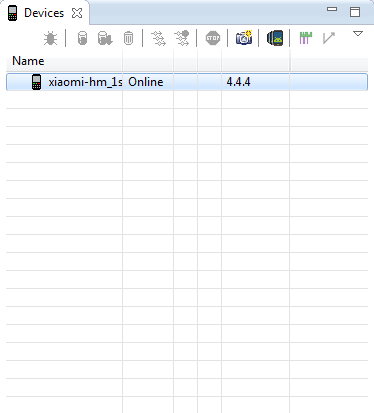
DDMS perspective shows you the list of Connected devices to your PC on which you can run your application.
Now we are all Set to start Building our First Application…
Creating a New Android Project
- Open File > New > Android Application Project
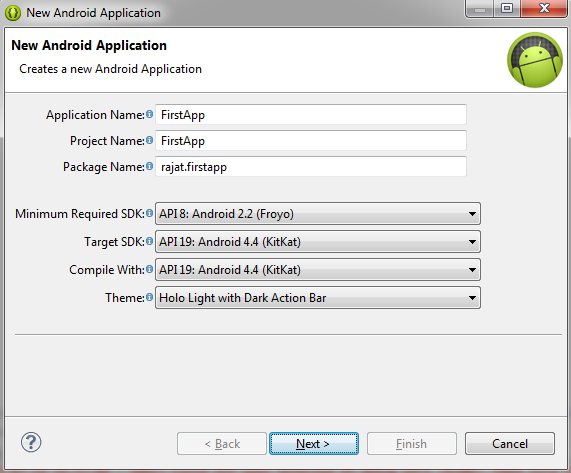
Name Convention for Package Name :
company.developer.ProjectName or developer.ProjectName - Click on Next Configure Project
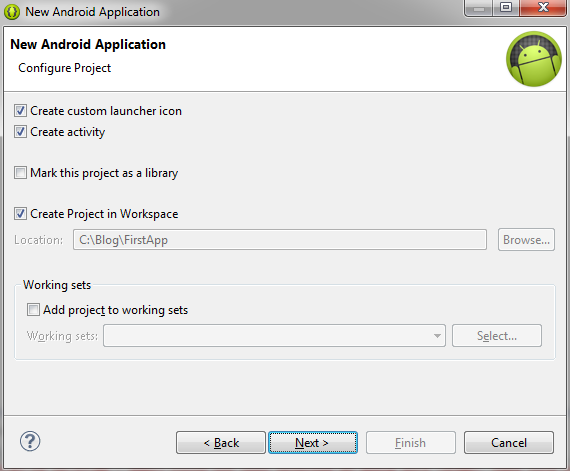
- Click Next Configure Launcher Icon
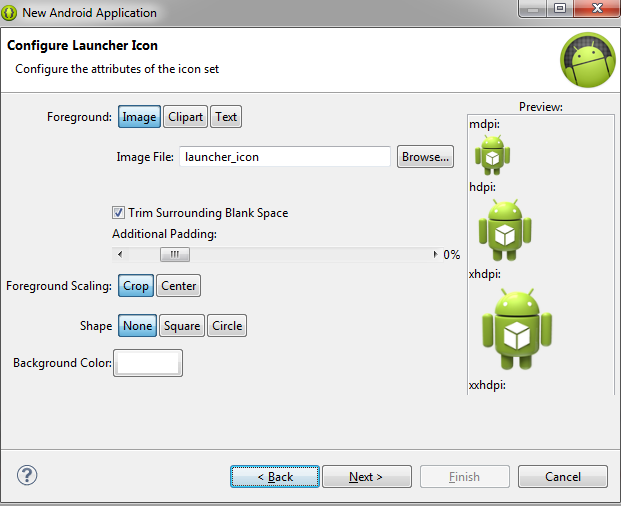
- Click Next
Create Activity
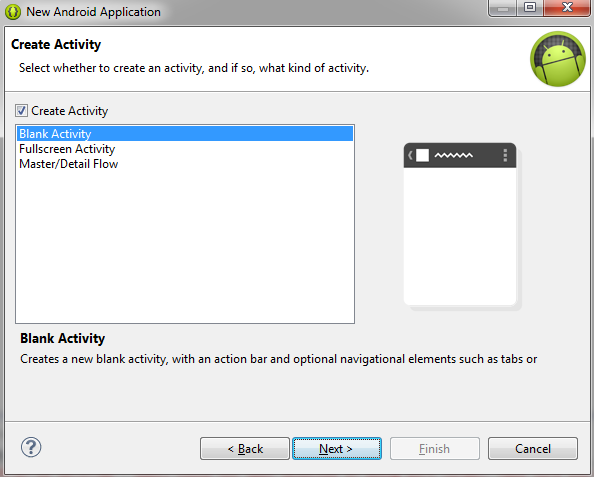
- Click Next
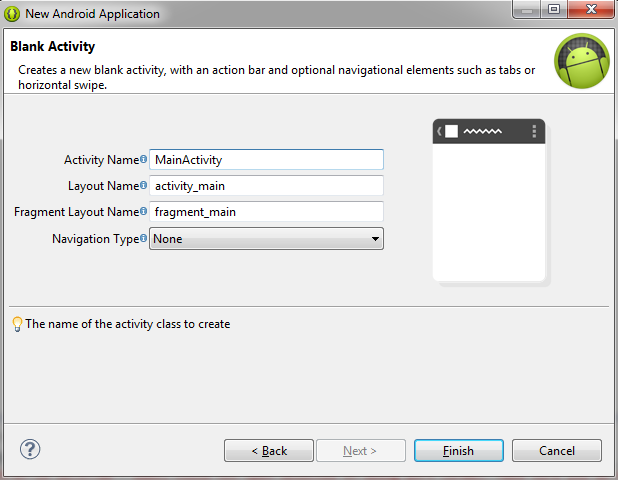
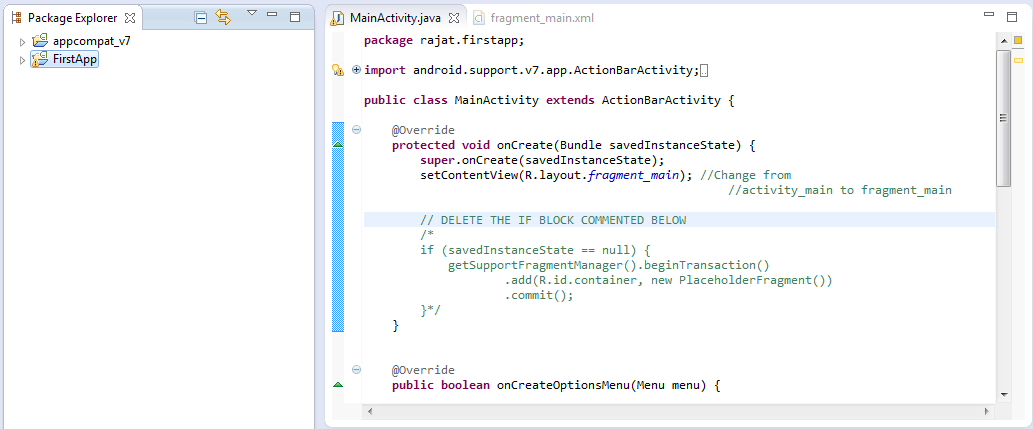
- After Clicking on Finish, Eclipse looks similar to this :
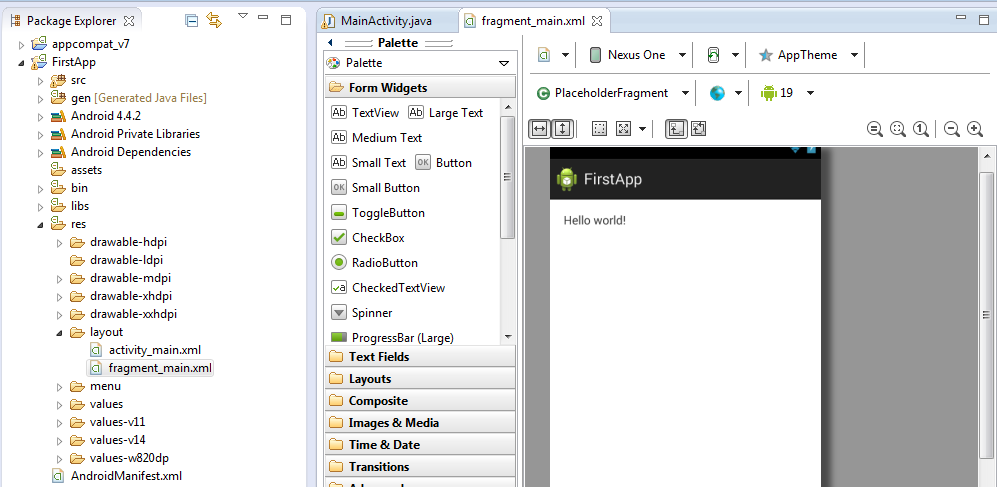
In MainActivity.java, edit the setContentView from activity_main to fragment_main, and the “Hello World” application is ready to run on your Device.
Running The Application
To run your Application :
- Right click on FirstApp > Run as > Android Application .
- Select your Device on which you want to run your Application.
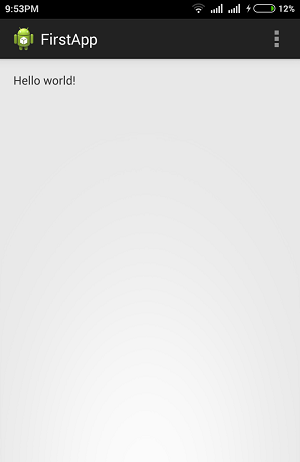
Here is the Screenshot of our First Application running successfully .
So, that’s it for our today’s tutorial. In our next Tutorial, we will design a Simple Toast Application, and learn about Packages and Layouts in Android.Our next tutorial will be coming out in a few days, keep practicing till then. ;)
NOTE : Our upcoming tutorials might require Rooted Smartphones to run some Applications. For those who want to, can Root your Device with just one click using iRoot.
Keep reading
iRoot | Root your android smartphone with a single click!
Now root your Android smartphone using iRoot application in One click! Unlock the infinite possibilities of customization by gaining the SU (root) access.
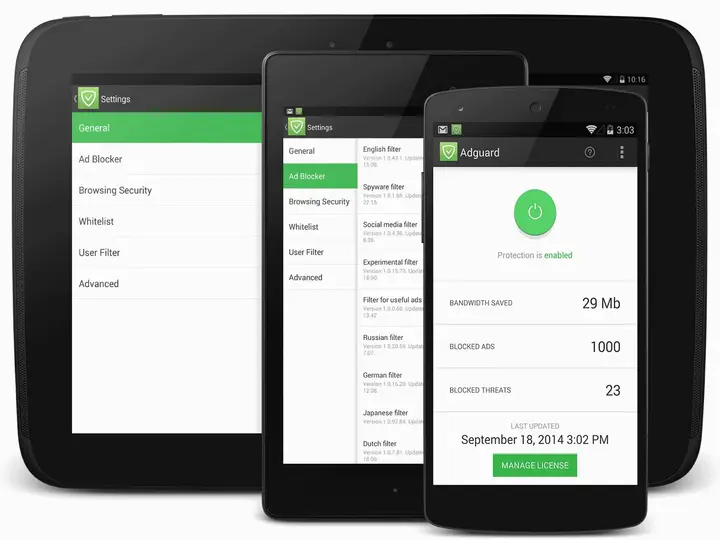
Adgaurd - An ad blocker which works without root!
Adgaurd is an ad blocker which works without root! You can block those unwanted ads on your Android devices using this application which use VPN technology.
Eye strain? No more! Install this app to save your eyes.
Are you among those folks who use the computer at night and suffer from eye strain or sleep deprivation? Well, I just found an app to sort it out for you.
Leave a comment