Turning a Samsung Foldable into a Retro Handheld: An AI-Agent-Run ES-DE Setup Guide
20 systems, one frontend, every one running at full speed. Here’s how an AI agent and I got there, including the parts that broke.
 Jatin Kumar Malik First published on
 Medium
20 systems, one frontend, every one running at full speed. Here’s how an AI agent and I got there, including the parts that broke.
After an AI agent finished fixing my phone’s battery over ADB (that’s an earlier post in this series), I gave it a more fun job.
For years my emulation box was a Raspberry Pi running RetroPie. Phones are now far more powerful than a Pi. My whole dev setup already runs on one, and I have backups of games I own that I wanted to play on mine. So the plan was to retire the Pi and turn my Galaxy Z Fold 8 Ultra (Snapdragon SM8850, Adreno 840) into a proper retro handheld. Everything had to launch from ES-DE, with good box art, sensible settings per console and an FPS counter.
End of an era.
This is the guide. I wrote it so another person, or another AI agent, can repeat it on any reasonably modern Android phone.
A legal note: this guide is about setting up emulators. It doesn’t cover where to get games and doesn’t link to any. It assumes you’re using backups of games and BIOS files you own and dumped from your own hardware. Emulators are legal. Downloading ROMs or BIOS files you don’t own generally isn’t, and the rules on personal backups vary by country. This isn’t legal advice. And please support the developers: ES-DE for Android is a paid app, sold through Patreon and the Samsung Galaxy Store.
Quick summary
20 systems set up and tested through ES-DE:
- Nintendo: NES, Famicom, Famicom Disk System, SNES, Super Famicom, Game Boy, Game Boy Color, GBA, N64, Virtual Boy
- Sega: Genesis, Master System, Game Gear, 32X
- NEC: PC Engine, TurboGrafx-16, SuperGrafx
- Sony: PS1, PSP
- Atari: 7800
Every system held full frame rate in testing: 60 FPS, or 50 for the Virtual Boy, which is its native rate.
The stack: ES-DE as the frontend, RetroArch for 18 of the systems, standalone PPSSPP for PSP, GameNative (open source) for PC games, and Better xCloud plus GeForce NOW for cloud gaming.
The biggest gotchas:
- PPSSPP needs folder access granted through its own Browse button, or every launch from ES-DE fails.
- N64’s hardware renderers give a black screen on Adreno 8xx GPUs. The software renderer works.
- ScreenScraper’s free daily quota disappears fast if you scrape every image type.
The stack
- ES-DE 3.5: the frontend. It holds your game lists, theme and scraped media, and launches the right emulator for each system.
- RetroArch 1.22: with the right “core” (emulator plugin) for each system: Mesen, Snes9x, Gambatte, mGBA, Genesis Plus GX, PicoDrive, Beetle PCE / SuperGrafx / VB, ProSystem, PCSX ReARMed and Mupen64Plus-Next.
- PPSSPP 1.20 (standalone): for PSP. It’s sharper and more configurable than the RetroArch core.
- GameNative (GPL-3.0): Steam, Epic and GOG PC games through Wine and Box64. I chose it over GameHub because it’s open source.
- Cloud: Better xCloud (Xbox Cloud Gaming), GeForce NOW and PS Remote Play.
Step 1: Take inventory first (read-only)
# Installed emulators and their versions
adb shell pm list packages --user 0 | grep -iE "retroarch|ppsspp|es_de|dolphin|aethersx2|gamenative|egggame|lemuroid"
adb shell dumpsys package <package> | grep -E "versionName|installerPackageName"
# Do they have "All files" access?
adb shell cmd appops get <package> MANAGE_EXTERNAL_STORAGE
# Where are the ROMs and BIOS files? (search by extension)
adb shell 'find /sdcard -type f \( -iname "*.iso" -o -iname "*.cso" -o -iname "*.chd" -o -iname "*.pbp" -o -iname "*.cue" -o -iname "*.zip" -o -iname "*.7z" \) 2>/dev/null'Then check each app’s latest release. Most publish on GitHub (gh api repos/<owner>/<repo>/releases), and ES-DE lists its latest version on its own site.
What the inventory turned up:
- ES-DE was configured but had zero games. It also turned out to keep its settings in
/sdcard/ROMs/settings, not/sdcard/ES-DE. - My game backups were still compressed, in a folder no emulator would look in.
- ES-DE’s default PSP emulator wasn’t installed.
- ES-DE and GameNative were both out of date.
Step 2: Update safely
Before installing any APK from outside the Play Store:
- Get it from the official source: GitHub releases, the project’s website or your Patreon download link. Never grab a paid APK from a random mirror. These apps have “All files” access, and a tampered build would inherit it.
- Check the signing certificate matches your installed copy. Run
apksigner verify --print-certs new.apk, thenadb shell pm path <package>, pull the installed APK and compare. If the certificate’s SHA-256 matches, it’s the same developer. Android refuses mismatched updates anyway. - Compare the file’s SHA-256 with the hash GitHub shows for the release asset.
- Scan it, for example with Windows Defender:
MpCmdRun.exe -Scan -ScanType 3 -File <apk>. - Install for your main profile only with
adb install --user 0 -r app.apk.
A heads-up on step 4: apps that bundle Wine, like GameNative, ship Windows test programs, and Defender may flag one with a heuristic ...!ml detection. In my case the already-installed version had the identical flag, the signature matched and the source is public, so I judged it a false positive.
And on step 5: a plain adb install also installs the app into the work profile, Dual Messenger and Secure Folder. I learned that one the hard way.
Step 3: Put ROMs where ES-DE expects them
ES-DE reads /sdcard/ROMs/<system>/, and each folder name has to match ES-DE’s system name:
nes  famicom  fds  snes  sfc  gb  gbc  gba  n64  virtualboy
genesis  mastersystem  gamegear  sega32x
pcengine  tg16  supergrafx  atari7800  psx  psp
Cartridge games: zipped single-ROM files are fine, since RetroArch loads them directly. Put ROM hacks in a subfolder like nes/hacks/, and ES-DE will show it as a folder in the game list.
PSP: if your dumps are compressed, unpack them on a PC first, then confirm each one is a real PSP disc by reading its game ID:
7z e -so "Game.iso" UMD_DATA.BIN | head -c 10 # prints the disc ID, e.g. ULUS-xxxxxPS1 games split into .bin + .cue: use ES-DE’s “directories interpreted as files” feature so each game shows up as a single entry:
/sdcard/ROMs/psx/Game Name.cue/Game Name.cue
/sdcard/ROMs/psx/Game Name.cue/Game Name.bin
The folder name has to match the .cue file inside it exactly. For multi-disc games, use a Game.m3u/ folder holding the per-disc files plus a Game.m3u that lists them. Single-file .pbp games go straight into psx/.
Bonus: pulling games out of an old RetroPie SD-card image without mounting it
Coming from a Raspberry Pi? My old RetroPie setup lived on an SD-card image on my PC, and I didn’t need to flash or mount it to move my backups over. The agent read the image’s Linux (ext4) partition directly with debugfs in WSL. No mounting, no sudo, no extracting the whole image:
# Partition offset in bytes, from 7-Zip
7z l -slt image.img        # look at the "Offset" of the Linux partition
# List and copy straight out of the image (-c = read-only catalog mode)
debugfs -c -R "ls -l /home/pi/RetroPie/roms" "/mnt/d/image.img?offset=276824064"
debugfs -c -R "rdump /home/pi/RetroPie/roms/n64 /mnt/c/staging" "/mnt/d/image.img?offset=276824064"Most RetroPie folder names already match ES-DE’s. The one I had to rename was megadrive → genesis.
Step 4: Make ES-DE launch the right emulator
Every system in ES-DE has a default emulator plus alternatives. On Android the defaults were RetroArch cores for nearly everything. I changed two:
- PSP: the default is RetroArch’s PPSSPP core. I switched to “PPSSPP (Standalone)”.
- PS1: the default is Beetle PSX, which requires a BIOS. I switched to “PCSX ReARMed”, which has a built-in BIOS fallback and uses a real BIOS when one is present.
You can change these in ES-DE’s menus, or write them straight into the system’s game list while ES-DE is closed:
<?xml version="1.0"?>
<alternativeEmulator>
    <label>PPSSPP (Standalone)</label>
</alternativeEmulator>
<gameList>
</gameList>
Save that as /sdcard/ROMs/gamelists/psp/gamelist.xml. The label has to match the option name in ES-DE exactly.
After adding new system folders, run Main menu → Utilities → Rescan ROM directory. Until I did, ES-DE only showed 4 of my 20 systems.
Step 5: Storage permissions (where most launches fail)
ES-DE needs All files access.
RetroArch from retroarch.com targets an older Android version (SDK 28), so it uses the classic storage permission. ES-DE passes it a file path, and that works once the permission is granted.
Standalone PPSSPP is where launches break. ES-DE hands it the game through Android’s file-picker system, as a content:// link, and PPSSPP can only open it if it’s been given access to that folder. Without it, you get this:
Could not load game. IdentifyFile: File doesn't exist: content://com.android.externalstorage.documents/tree/...The fix, straight from ES-DE’s docs: open PPSSPP → Browse… → go to ROMs → psp → Use this folder → Allow. It has to be PPSSPP’s own Browse button, and you should grant the system folder itself, not the whole ROMs folder.
Step 6: Tune RetroArch for the best quality per watt
Install the cores: Main Menu → Online Updater → Core Downloader. While you’re there, run Update Core Info Files, Update Assets and Update Slang Shaders.
Global settings: edit retroarch.cfg with RetroArch closed, and back it up first. On Android it’s in /sdcard/Android/data/com.retroarch/files/.
video_driver = "vulkan"
fps_show = "true"
sustained_performance_mode = "true"   # steady clocks instead of bursts → less throttling
2D systems: give each core a crisp pixel-art shader. Load shaders_slang/pixel-art-scaling/sharp-bilinear-simple.slangp, then Quick Menu → Shaders → Save Core Preset. That writes /sdcard/RetroArch/config/<Core>/<Core>.slangp, and once one preset exists, an agent can copy it into the other cores’ folders. Scaled-up pixels stay sharp and it costs nothing in performance.
Game Boy: in Gambatte’s options (config/Gambatte/Gambatte.opt), set gambatte_gb_colorization = "auto". Original Game Boy games then get Super Game Boy-style colour.
PS1 (PCSX ReARMed): put a BIOS dumped from your own PlayStation (for example scph5501.bin) in RetroArch’s system/ folder. The log line Loaded BIOS scph5501.bin confirms it’s being used. Then in Core Options, turn on Enhanced Resolution and Enhanced Resolution Speed Hack. That doubles the internal resolution and still holds 60 FPS.
Other BIOS files that helped (again, dumped from your own hardware):
disksys.rom: required for Famicom Disk Systemgba_bios.bin: optional for GBA7800 BIOS (U).rom: optional for Atari 7800
N64 is the exception. On Snapdragon 8 Elite-class GPUs (Adreno 830/840), Mupen64Plus-Next’s hardware renderers, GLideN64 and ParaLLEl-RDP, gave a black screen while the audio kept playing. It’s a known issue. The workaround is to set the core option mupen64plus-rdp-plugin = "angrylion" (the accurate software renderer) and save a core override with video_driver = "gl" in config/Mupen64Plus-Next/Mupen64Plus-Next.cfg.
That runs at 60 FPS at native resolution. For HD N64, try RetroArch’s nightly builds, where fixes are reportedly landing, or a standalone N64 emulator.
Angrylion to the rescue.
Step 7: PPSSPP settings for a flagship Snapdragon
PPSSPP keeps its settings in private app storage, so you can’t edit them over ADB. Set them in the app under Settings → Graphics:
- Backend: Vulkan
- Rendering resolution: 4x PSP (about 1080p). The Adreno 840 handles it easily and it looks sharp on a big screen. Drop to 3x if you want the phone cooler on long sessions.
- Anisotropic filtering: 16x
- Texture filtering: Auto Max Quality
- Texture upscaling: off. It’s redundant at 4x and causes stutter.
- Post-processing shader: none
- Frame skipping: off
- Show FPS counter: on
Always leave PPSSPP through its own Exit menu. Force-stopping it throws away any settings you just changed. That bit me once.
Step 8: Box art and game info
Theme: ES-DE → UI settings → Theme downloader → Art Book Next, with the “List: Metadata & Boxart” variant. You get box art, screenshots, ratings and descriptions laid out like a coffee-table book.
Scraping: ES-DE → Scraper → ScreenScraper.
- Make a free account. Without one you’re heavily rate-limited.
- Watch the quota. The free tier allows about 20,000 requests a day, and every image file counts as a request. Scraping a few hundred games with every image type (cover, back cover, 3D box, disc, screenshot, title screen, logo, fan art) used up a whole day’s allowance.
- For big libraries, scrape lean: box art, screenshots and logos only, with videos and manuals off. Spread it over a few days.
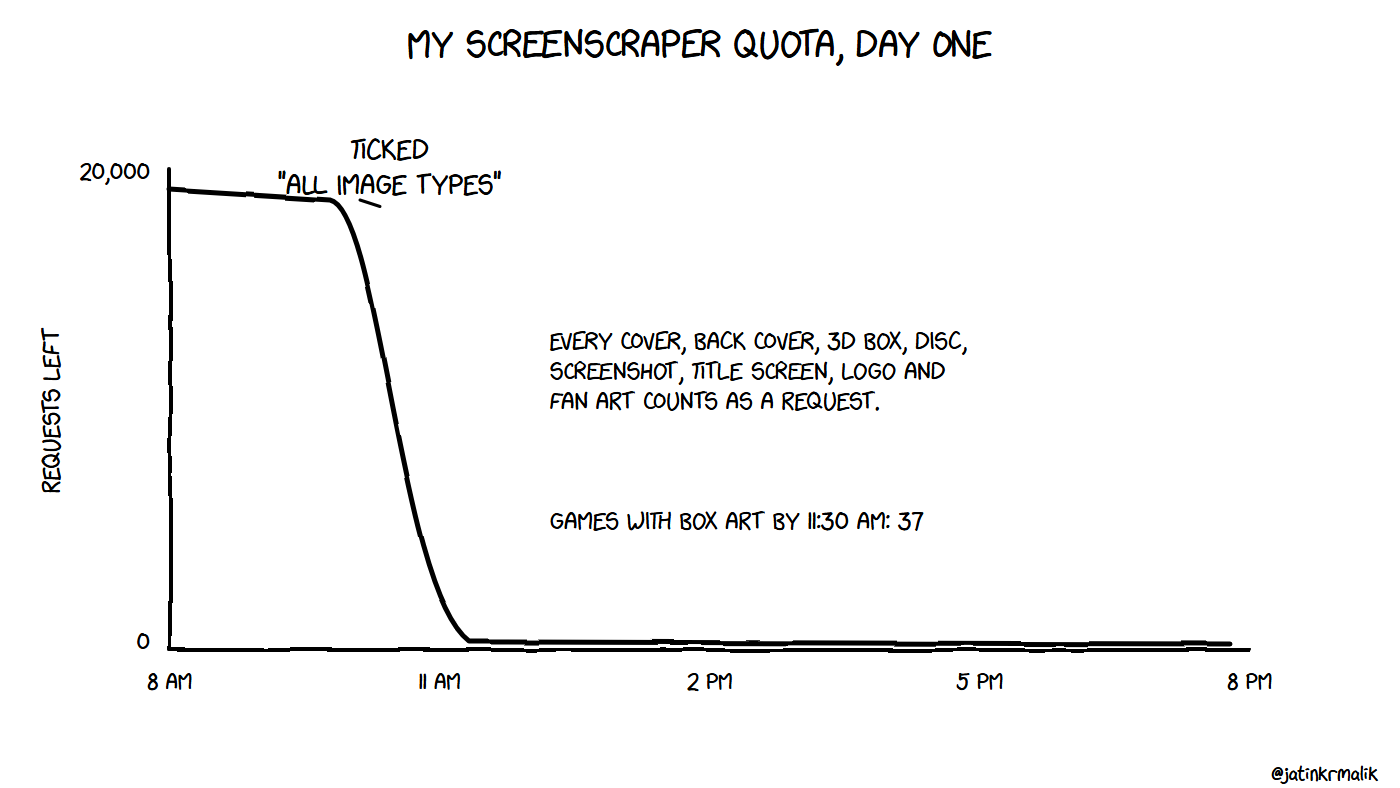
Learn from my mistakes. Scrape lean.
Shortcut: reuse your old metadata. RetroPie and Skraper keep scraped info in a gamelist.xml per system, using the same tags ES-DE reads: name, desc, rating, releasedate, developer, publisher, genre and players. The agent wrote a small script that:
- Pulls each system’s old
gamelist.xmlout of the image. - Lists the actual files on the phone and keeps only entries whose file exists, mapping old
.binpaths to the newGame.cue/folders. - Strips the old image paths, since ES-DE stores media differently.
- Writes
/sdcard/ROMs/gamelists/<system>/gamelist.xml, keeping any<alternativeEmulator>block already there.
Most games got full descriptions instantly, and nearly every old entry matched a file on the phone. Old Skraper images are usually “mix” images, with the box, a screenshot and the logo merged into one picture. Modern themes look better with separate images, so I’d still scrape those fresh.
Step 9: The test matrix
The agent launched one game per system from ES-DE and checked the FPS counter:
- NES / Famicom / FDS (Mesen): 60 FPS. FDS works with
disksys.rom. - SNES / Super Famicom (Snes9x): 60 FPS, sharp-bilinear shader.
- Game Boy / GBC (Gambatte): 60 FPS, automatic colorization.
- GBA (mGBA): 60 FPS, real BIOS detected.
- Genesis / Master System / Game Gear (Genesis Plus GX): 60 FPS.
- 32X (PicoDrive): 60 FPS.
- PC Engine / TG-16 (Beetle PCE), SuperGrafx (Beetle SuperGrafx): 60 FPS.
- Atari 7800 (ProSystem): 60 FPS.
- Virtual Boy (Beetle VB): 50 FPS, its native rate. RetroArch hung once on quit, and “Close app” recovers it.
- N64 (Mupen64Plus-Next): 60 FPS, Angrylion only (see Step 6).
- PS1 (PCSX ReARMed): 60 FPS with the BIOS loaded and enhanced resolution on.
- PSP (PPSSPP): 60 FPS at 4x.
Step 10: The performance overlay that didn’t work
I wanted a small FPS/CPU/GPU overlay. Samsung’s Game Booster has a “System Monitor”, but its panel never showed up for emulators, because Samsung’s game manager classifies PPSSPP as non-game, even after I added it to Gaming Hub. I settled for the built-in FPS counters in PPSSPP and RetroArch. On an unrooted phone, most third-party overlays can’t read GPU utilization anyway.
Step 11: Clean up
- Remove duplicate frontends like Lemuroid once RetroArch covers everything. Back up their saves first. Mine had PSP saves and save states, which I copied to
Documents/before uninstalling. - Pick one PC-game layer: GameNative (open source) or GameHub (closed source). Don’t keep both.
- Delete ES-DE’s empty placeholder folders, the 165 or so systems you’ll never use. ES-DE won’t recreate them if
CreatePlaceholderSystemDirectoriesis off. - Delete the compressed copies you moved over and the installer APKs once everything’s verified.
Notes for AI agents automating this
- Emulators draw their own interface, so
uiautomator dumpsees nothing in PPSSPP, RetroArch or ES-DE. Use screenshots (screencap -p -d <display-id>on foldables) and D-pad key events (KEYCODE_DPAD_*,KEYCODE_ENTER,KEYCODE_BACK). - In ES-DE, Android’s Back key can quit the whole app. Use ES-DE’s on-screen B button to go back inside its menus.
- Never force-stop an emulator mid-configuration. Quit through its own menus so it saves. RetroArch writes
retroarch.cfgon quit whenconfig_save_on_exitis true. - Only edit
gamelist.xmlwhile ES-DE is closed, or for systems it hasn’t loaded yet. It rewrites game lists on exit. - Simulated key presses (
input keyevent --longpress ...) are fine for smoke-testing button shortcuts, but have the human confirm with the real buttons. - Run large copies as a background job, one system at a time, deleting each staging folder afterwards, so you don’t fill up the PC or the phone.
- Check free space before each big copy. The agent stopped one plan that would have left the phone with less than about 8 GB free.
Final thoughts
The emulation itself was the easy part. A flagship Snapdragon runs everything up to PSP at 1080p at full speed. The hard parts were all plumbing: Android’s storage permissions, every app keeping its settings somewhere different, one GPU bug and scraper quotas.
Having an agent that reads logs, looks up known issues and tests each system one at a time turned what would have been a weekend of fiddling into an afternoon.
Happy retro gaming. And when your favourite classics get official re-releases, buy them.
Keep reading
Coding on the Go: My Full-Stack Dev Environment Lives in My Phone Now
I used to think I needed a laptop. Then I dropped a phone into a lapdock, and now I ship code from hotel TVs.
The Haswell box: the PC I built in 2015, four years on
The PC I built in 2015: an i5-4440 on a Gigabyte B85M, a GTX 960 a year later, a desk I drew in MS Paint, 16 GB for Chrome, and the dead hard drive that taught me 3-2-1.
Build your own PC - Killer rigs for any budget | 2018 | India
Are you a PC enthusiast or a Hardcore Gamer? Join the fun to hand-pick the best suitable components for your most killer rig of the season. #PCMasterRace
Leave a comment