I Let an AI Agent Debug My Foldable’s Battery Over ADB. Here’s the Playbook It Followed.
60 MB of diagnostics, six weeks of battery history, and a surprise: the “bloat” from restoring my old phone wasn’t the problem.
 Jatin Kumar Malik First published on
 Medium
60 MB of diagnostics, six weeks of battery history, and a surprise: the “bloat” from restoring my old phone wasn’t the problem.
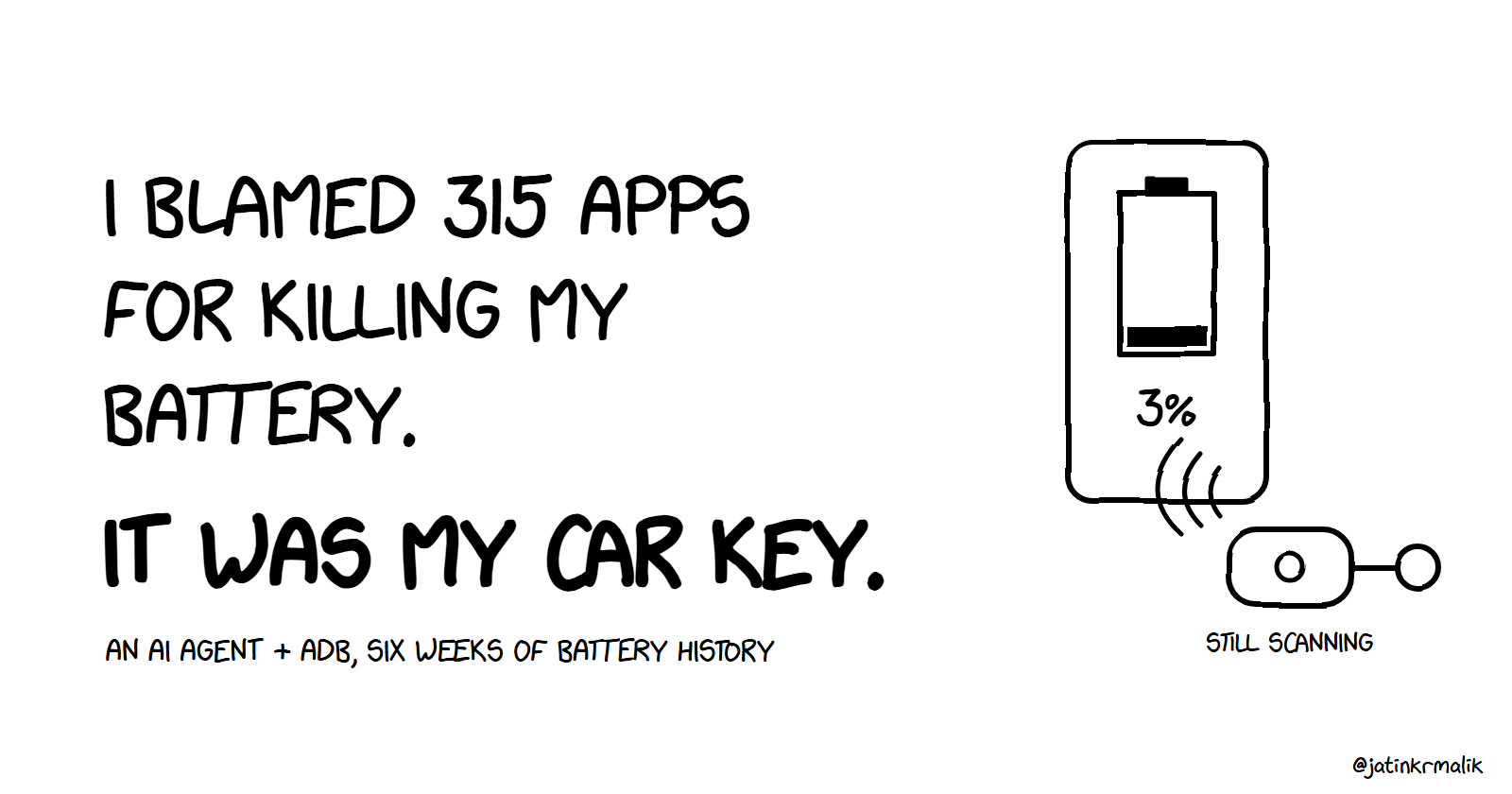
I moved to a Samsung Galaxy Z Fold 8 Ultra and restored everything from my old S23 Ultra with Smart Switch. Battery life was worse than it should have been. I had a theory: I’d dragged over hundreds of apps I never use, and they were all quietly running in the background.
So I plugged the phone into my PC, turned on USB debugging, and asked an AI coding agent (Claude Code) to pull weeks of battery history over ADB, work out what was actually draining it, and fix it.
My theory was mostly wrong. The real culprits were more interesting. And nearly every fix turned out to be a setting, a permission or a small automation, all of it reversible.
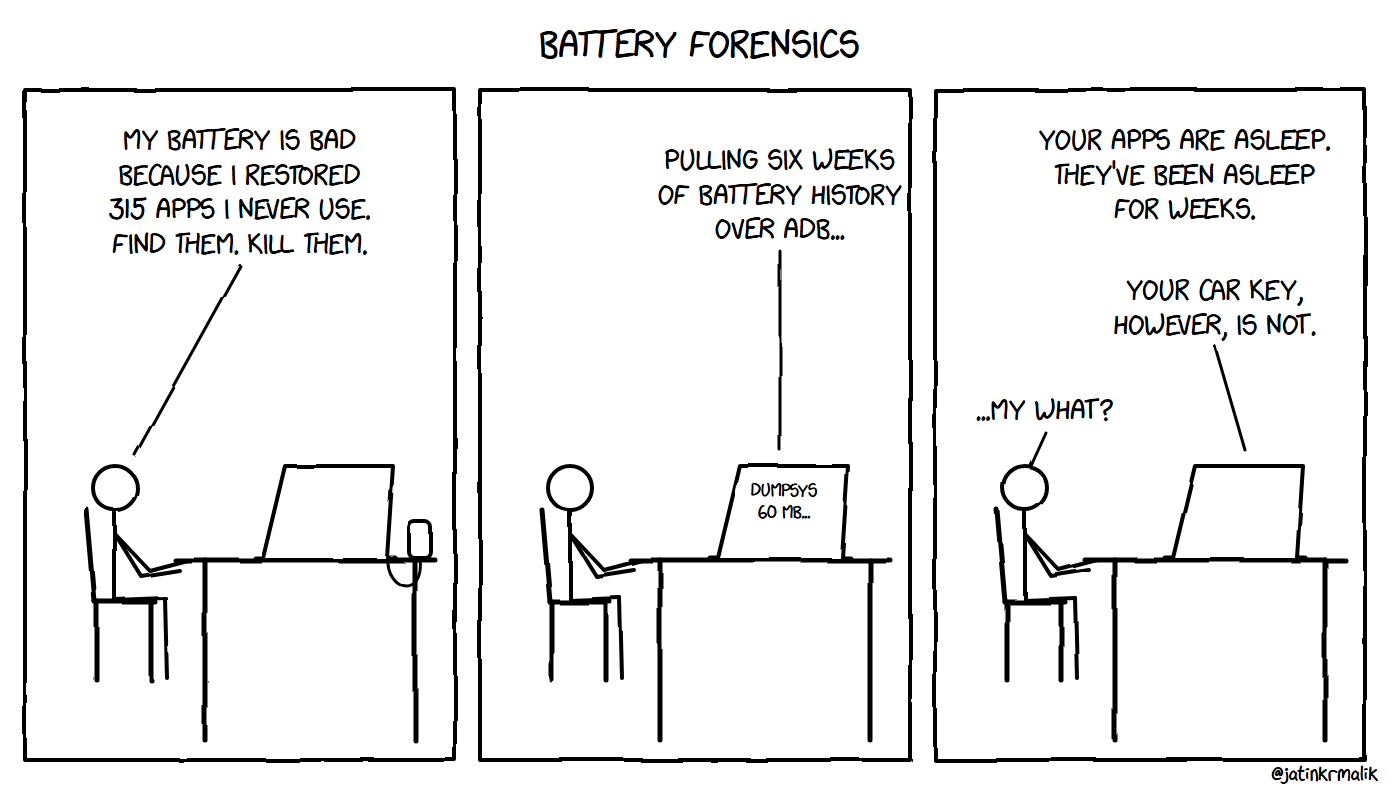
The short version of this whole post.
What follows is the playbook. I wrote it so that you, or your own AI agent, can run it on any Android phone. I’ve marked the Samsung-only parts.
Quick summary
Baseline: about 103% of a full battery used per day. The screen-on drain was 12.9% an hour and the screen-off drain was 2.5% an hour. A healthy phone sitting idle uses somewhere around 0.5 to 1% an hour, so roughly a third of every charge was vanishing while the phone sat in my pocket.
The restored “bloat” was mostly harmless. 222 of my 315 apps hadn’t been opened in three weeks or more, but Android had already parked 202 of them in its “never” or “restricted” standby buckets. Uninstalling them frees storage. It doesn’t buy you battery.
What was actually draining it:
- A car-key app’s Bluetooth service stuck in a loop, burning about 50 CPU-minutes a day
- Samsung Health’s snore detection holding the microphone in the middle of the day
- Five or more system services doing near-constant Bluetooth LE scans
- A second SIM that was permanently roaming, plus 5G clinging to one bar of signal at home
- Cloned app profiles (Dual Messenger, Secure Folder, the work profile), each running its own copy of Google Play services
- About 10 GB of swap in use, courtesy of Samsung’s “RAM Plus”
The fixes: a handful of ADB settings changes, background restrictions, a few Samsung Routines and one Tasker profile.
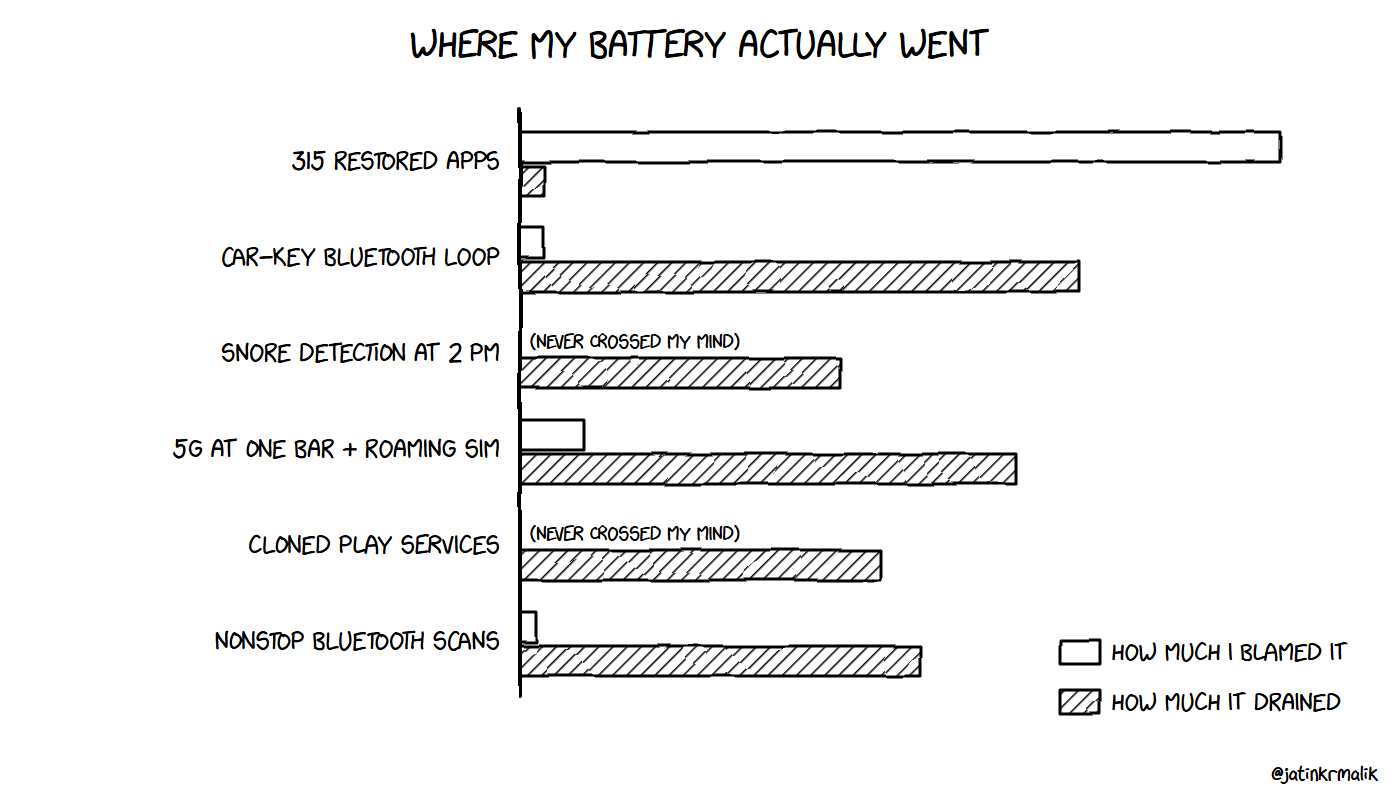
Not to scale. Emotionally accurate.
Ground rules (for humans and agents)
- Read-only first. Collect, analyze, then propose. Nothing changes until the owner says yes.
- Snapshot before you touch anything. Write down every original value and keep an undo script.
- Ask before deleting anything, and before touching personal features like SIM cards, health tracking or accounts.
- Never handle passwords unless the owner explicitly hands them over. Never use shared or leaked credentials from the internet.
- Re-measure after two or three days of normal use. Without a re-measure, you’re going on vibes.
Step 1: Connect and collect everything
Turn on Developer options → USB debugging, then connect the phone:
adb devices -l
adb shell getprop ro.product.model
adb shell getprop ro.build.version.release
If more than one device shows up (a smart TV on your network, say), pin every command to the phone’s serial with adb -s <SERIAL>.
Now dump everything that matters for battery into local files. None of these change anything:
adb shell dumpsys batterystats            > batterystats.txt
adb shell dumpsys batterystats --checkin  > batterystats_checkin.txt
adb shell dumpsys usagestats              > usagestats.txt
adb shell dumpsys procstats --hours 72    > procstats.txt
adb shell dumpsys netstats --full --uid   > netstats.txt
adb shell dumpsys alarm                   > alarm.txt
adb shell dumpsys jobscheduler            > jobs.txt
adb shell dumpsys power                   > power.txt
adb shell dumpsys deviceidle              > deviceidle.txt
adb shell dumpsys appops                  > appops.txt
adb shell dumpsys bluetooth_manager       > bt.txt
adb shell dumpsys telephony.registry      > telephony.txt
adb shell dumpsys sdhms                   > sdhms.txt     # Samsung only
adb shell pm list packages -U             > packages.txt  # UID → package map
Tip for agents: run these in parallel and write them to files. Together they come to tens of megabytes, far too much to stream into an agent’s context. Parse them with small scripts instead.
Step 2: Build a baseline from history, not “since last charge”
dumpsys batterystats mostly covers the time since your last charge. If you charged this morning, that’s a few hours of data.
On Samsung, dumpsys sdhms is where the history lives. Its “Daily batterystats” and “Daily Summary” tables keep per-day totals going back weeks, even across OS updates: battery used, screen-on time, screen-off time, and how much drained with the screen on versus off.
From those, work out two rates for each day: screen-on % per hour and screen-off % per hour. My averages:
~103% used per day · 5.4 h screen-on @ 12.9%/h · 13 h screen-off @ 2.5%/hOne trap in batterystats’ “Discharge step durations”: a step with no screen-on or screen-off label means the screen state changed during that step. Don’t count those as screen-off.
Step 3: Find what’s actually draining
3.1 CPU time per day (catches runaway processes)
adb shell ps -A -o TIME,ETIME,USER,NAMEDivide each process’s CPU TIME by how long it’s been running (ETIME) to get CPU-minutes per day. The system server and display services always sit near the top. That’s normal. You’re looking for apps up there.
What I found: a car “phone as a key” app’s Bluetooth service was eating about 50 CPU-minutes a day, more than SystemUI. After a reboot it used under one CPU-minute in four and a half hours. It had been stuck in a loop.
Normalized CPU time finds runaway services fast. A reboot is a fine first fix, as long as you check again afterwards.
3.2 Who’s holding the microphone or wakelocks?
Two places to look. For wakelocks, check “All partial wake locks” in batterystats. A wakelock called AudioIn means something is recording. For recent mic use, adb shell cmd appops get <pkg> RECORD_AUDIO shows the last time an app used the mic and for how long.
To see which of an app’s services is running, use adb shell dumpsys activity services <pkg>.
What I found: Samsung Health’s SnoreService, a foreground service with the mic open, was recording during the day. My guess is that sleep detection misfired.
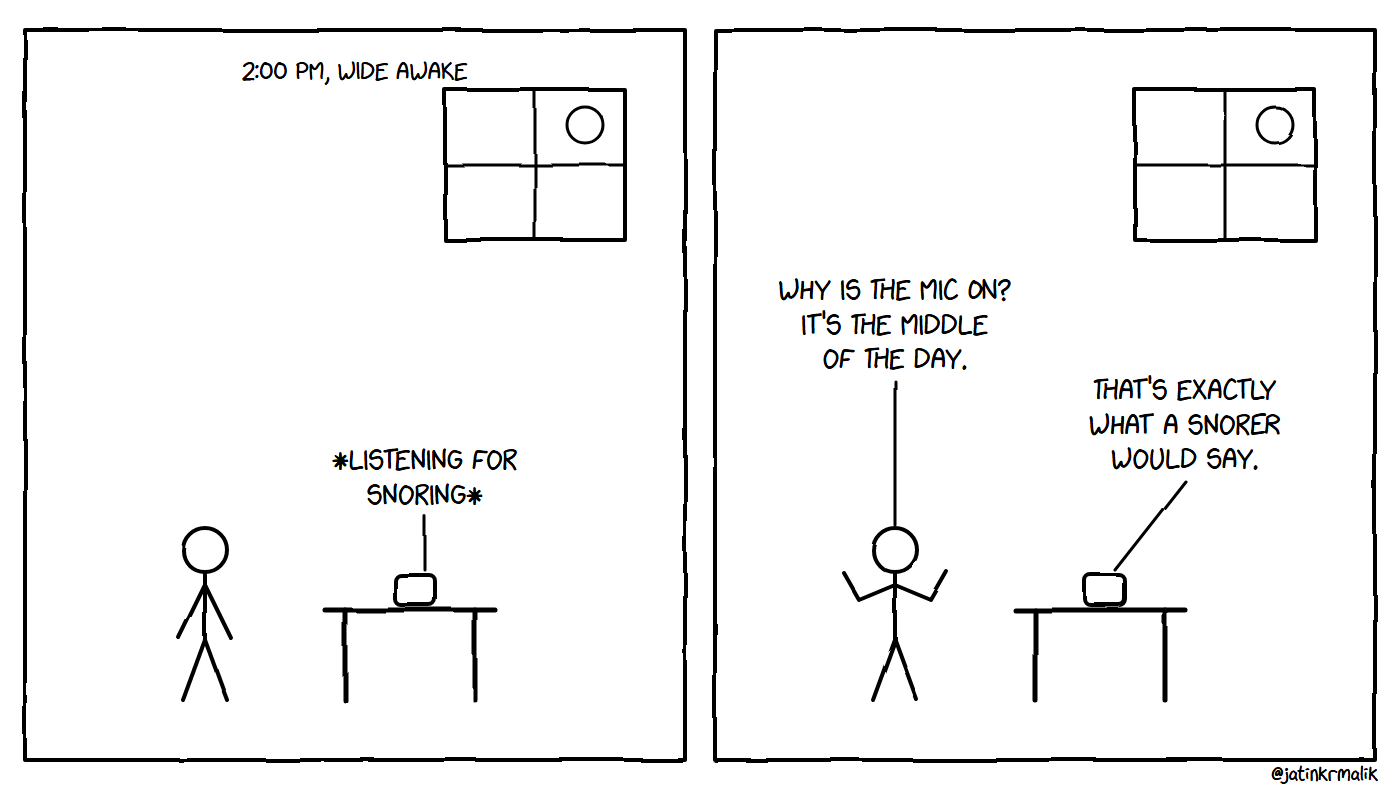
Samsung Health’s SnoreService, mid-afternoon.
3.3 Bluetooth LE scanning per app
adb shell dumpsys bluetooth_manager # look for "LE Scanner Map"This gives you total scan time per app since boot. Here’s what was scanning on my phone, as a share of the time since boot:
- SmartThings: about 99%
- Android’s own Bluetooth stack (LE Audio reconnect): about 99%
- Google Play services: about 85%
- Samsung’s “continuity” service: about 81%
- Samsung’s multi-device service: about 59%
3.4 The cellular radio
dumpsys telephony.registry shows signal level per SIM, and dumpsys isub gives you the subscription IDs.
What I found: I was running two SIMs in dual standby. One was an international SIM that was always roaming. The other, my main SIM, was on 5G standalone with one bar at home. Between them, signal was poor or missing about 40% of the time.
Two radios hunting for a weak signal will drain a phone even while it sits idle.
3.5 Background data over 14 days
dumpsys netstats --full --uid keeps per-app history. Parse the UID stats section. set=DEFAULT is background traffic and set=FOREGROUND is foreground. The transports= field tells you the network: {0} is cellular and {1} is Wi-Fi.
What I found: the photo-backup app was re-uploading about 6 GB in the background, 160 MB of it over mobile data. A speed-test app was quietly running its own background tests, about 800 MB worth. And the social apps were each moving hundreds of megabytes while I wasn’t looking at them.
3.6 Alarms and jobs, per user profile
dumpsys alarm has an Alarm Stats section listing wakeups per package since boot. dumpsys jobscheduler lists how long background jobs ran.
Pay attention to the user prefixes. u0 is your main profile, u10 is usually the work profile, u95 is Samsung’s Dual Messenger and u150 is Secure Folder.
What I found: Dual Messenger was running a second full copy of Google Play services, with 3,281 wakeups in nine days. Its cloned WhatsApp ran about 41 minutes of background jobs a day. I’d used it for 31 minutes in two months.
3.7 Memory pressure
adb shell "grep -E 'MemTotal|MemAvailable|SwapTotal|SwapFree' /proc/meminfo"What I found: 10.6 of 12.6 GB of swap in use, and kswapd burning about 15 CPU-minutes a day. Samsung’s RAM Plus (virtual RAM backed by storage) was set to 8 GB, and four user profiles were running at once.
3.8 Testing the “it’s the bloat” theory
To find unused apps, line up usage stats against standby buckets. dumpsys usagestats has a yearly in-memory section with lastTimeUsed and appLaunchCount for each app. adb shell am get-standby-bucket lists every app’s bucket: 10 is active, 20 working set, 30 frequent, 40 rare, 45 restricted and 50 never.
What I found: 222 of 315 apps were unused, but 202 of them were already in the never or restricted buckets. Android was keeping them asleep without my help.
Debloating frees storage and cuts down on update churn. It isn’t where your battery goes.
3.9 Don’t trust every alert
Samsung’s anomaly detector flagged “abnormal screen-off drain” three times. One of those lined up with an 80-minute drive on Android Auto, where the phone’s screen is off while it navigates and projects to the car. That drain was real, and it was fine.
Check alerts against what you were actually doing at the time.
Step 4: The fixes
Everything here can be undone. Record each original value before you change it.
4.1 Settings over ADB
# Screen timeout: 5 minutes → 1 minute
adb shell settings put system screen_off_timeout 60000
# Location "Bluetooth scanning" and "Wi-Fi scanning" off
adb shell settings put global ble_scan_always_enabled 0
adb shell settings put global wifi_scan_always_enabled 0
# Samsung: Nearby device scanning, and Continue apps on other devices
adb shell settings put system nearby_scanning_enabled 0
adb shell settings put system mcf_continuity 04.2 Take “Unrestricted” battery back from apps that don’t need it
adb shell cmd deviceidle whitelist             # list (look for "user," entries)
adb shell cmd deviceidle whitelist -<package>  # remove one
Leave the exemption on things that really need it: a smartwatch companion app, a VPN, or the car-key app if you depend on it.
4.3 Restrict background activity for apps you rarely use
adb shell cmd appops set <package> RUN_ANY_IN_BACKGROUND ignore
adb shell am set-standby-bucket <package> restricted
4.4 Block background mobile data for specific apps
You’ll need the app’s UID, which pm list packages -U gives you:
adb shell cmd netpolicy add restrict-background-blacklist <UID>I did this for the photo-backup app, which now waits for Wi-Fi, and for the speed-test app.
4.5 Turn off RAM Plus (Samsung, UI only)
Settings → Device care → Memory → RAM Plus → Off. The phone will reboot. My swap went from 12.6 GB to 4 GB, which is just the compressed in-memory swap.
4.6 LTE at home, 5G when out (Samsung Routines)
On home Wi-Fi, your data goes over Wi-Fi and calls go over Wi-Fi calling, so a 5G radio straining at one bar is pure cost. In Modes and Routines, create a routine:
- If: Wi-Fi network is your home network. Tick “Check network name only” if you have a mesh or several access points.
- Then: Network mode → LTE.
When the routine ends, it puts the previous mode back on its own.
Two Samsung quirks to know about. First, the Network mode picker labelled every option “Automatic” on my phone. The order is 5G/LTE, LTE, 3G, so verify over ADB rather than trusting the labels. Second, this action only changes your main (default) SIM.
To check what actually got set:
adb shell cmd phone get-allowed-network-types-for-users -s <slot>4.7 Second SIM: LTE only, permanently
My second SIM exists to receive OTP texts, so 5G does nothing for it. The set command takes a binary bitmask, where bit = 1 << (NETWORK_TYPE - 1), and NR (5G) is bit 19. Read the current mask, clear bit 19, and write it back:
adb shell cmd phone set-allowed-network-types-for-users -s 0 1001101001110000111That leaves LTE, LTE-CA, HSPA and the 2G/3G types, with no NR. To undo it, write the original mask back. Here that’s the same string with bit 19 set: 11001101001110000111.
You can also switch a physical SIM off entirely from the shell with cmd phone disable-physical-subscription <subId>. Be careful with this one. Texts sent while the SIM is off only get retried until they expire, and bank OTPs often expire within minutes.
4.8 Battery-saving routines (Samsung)
- Low battery saver: below 25% → Power saving, Standard.
- Ultra battery saver: below 10% → Power saving, Maximum. This is the old “Ultra power saving” mode: a plain dark home screen with only the apps you pick.
- Reading apps timeout: while Kindle or Chrome is open → 5-minute screen timeout, to offset the new 1-minute default.
- Android Auto charge reminder: Android Auto connected, not charging and battery under 50% → a notification read aloud telling you to plug in.
4.9 Pause the work profile outside work hours (Tasker)
Neither Samsung Routines nor Digital Wellbeing could schedule the work profile on my phone. The agent checked both apps’ code for the feature, and it isn’t there. Tasker can do it after a one-time permission grant:
# The permission's protection level must include "development" (true on Android 17 here)
adb shell dumpsys package android | grep -A1 "MODIFY_QUIET_MODE:"
adb shell pm grant net.dinglisch.android.taskerm android.permission.MODIFY_QUIET_MODE
The Tasker profile:
- Context: Time 09:00 to 17:00, Monday to Friday
- Enter task: Work Profile → On, user 10
- Exit task: Work Profile → Off
I tested both directions, and unpausing didn’t ask for a PIN.
One Tasker trap: an exit task only runs when the profile goes from active to inactive. If you create the profile outside its own time window, run the exit task by hand once.
4.10 Clean up storage
Uninstall for the main profile only with adb shell pm uninstall --user 0 <package>. Leave off --user 0 and you can hit other profiles too.
Firmware apps: on One UI 9, apps built into the system image can’t be removed without root (you’ll see only root can delete system app for a particular user). They don’t use your storage anyway.
Find the biggest files:
adb shell 'find /sdcard/ -type f -size +80M -exec stat -c "%s %n" {} + 2>/dev/null' | sort -rn | headGoogle Photos → Free up space only removes phone copies of things that are already backed up. Before you run it, make sure backup shows as complete, and that any folder you want to keep on the phone is not set to back up, because otherwise “Free up space” will delete its local copy. That cleared 18 GB for me.
Quality-of-life extras
Good Lock’s Routines+ module adds hardware-button triggers to Samsung’s Routines, and they work reliably on the lock screen. Mine:
- Hold Volume Down → flashlight
- Hold Volume Up → my AI assistant app
- Double-press Volume Up → camera
- Double-press Volume Down → voice recorder
I tried Tasker’s “Volume Long Press” event first and it was flaky. Android only delivers it while the screen is on and unlocked, and in testing it stopped firing once the screen went off. Routines+ has been reliable.
One more: when my Bluetooth earbuds connect, the phone opens my music app. You don’t need a volume step, because Android already remembers media volume per audio device.
Gotchas that cost the agent time
If you’re an agent following this, read this section first.
adb installinstalls into every profile: the work profile, Dual Messenger and Secure Folder. Useadb install --user 0 -r app.apk.- A work-profile policy that caps screen timeout also disables “Stay awake while charging”. Look for
mMaximumScreenOffTimeoutFromDeviceAdminindumpsys power. To keep the screen on during UI automation, send a harmless key every 30 seconds, and stop the loop before the owner starts gaming or typing:
while true; do adb shell input keyevent KEYCODE_SHIFT_LEFT; sleep 30; done- Git Bash on Windows rewrites
/sdcard/...paths. UseMSYS_NO_PATHCONV=1for remote paths andcygpath -wfor local ones. - Reading the screen:
uiautomator dumpworks for standard Android UI. Apps that draw their own UI, like games and emulators, need screenshots. - On foldables,
screencapneeds a display ID:screencap -p -d <id>. Get the IDs fromdumpsys SurfaceFlinger. Folding the phone locks it. - The first few keystrokes into a freshly opened search field sometimes get dropped. Re-read the screen and retype.
- Dialogs move their “Done” button when options change. Re-read the screen before tapping.
- Background agents run in parallel nicely, but only one should drive the screen at a time.
Step 5: Re-measure
After two or three days of normal use, pull dumpsys sdhms again and compare screen-off % per hour, screen-on % per hour and % used per day against your baseline.
While you’re at it, re-check CPU per day (ps), BLE scan time and background data for anything that’s crept back.
What I learned
- “Unused apps drain your battery” is mostly a myth on modern Android. Standby buckets do their job.
- The worst drains are things running when they shouldn’t be. A stuck Bluetooth loop, a mic service, constant scanning, weak radios and cloned profiles running duplicate system services.
- An agent with ADB access makes a very good battery auditor. It reads everything, normalizes the numbers and asks before it touches anything. It just needs clear guardrails.
If you try this on your own phone, tell me in the comments what your biggest drain turned out to be.
More from this series: I debloated my TCL Google TV over ADB, and I turned this same foldable into a retro handheld.
Keep reading
Be an automation-ninja with NFC stickers & Android smartphone!
Discover 25+ ways how you can use your Android device and NFC stickers/tags to automate your day to day life and be uber cool at it. Like a boss.

iRoot | Root your android smartphone with a single click!
Now root your Android smartphone using iRoot application in One click! Unlock the infinite possibilities of customization by gaining the SU (root) access.
Coding on the Go: My Full-Stack Dev Environment Lives in My Phone Now
I used to think I needed a laptop. Then I dropped a phone into a lapdock, and now I ship code from hotel TVs.
Leave a comment