How to install NVIDIA RTX 5000 (Blackwell) drivers on Linux
I wasted 3 hours getting my RTX 5080 working on Linux so you don't have to. Open kernel modules, per-distro steps for Ubuntu, Debian, Fedora, Arch, and the usual fixes.
 Jatin Kumar Malik First published on
 X
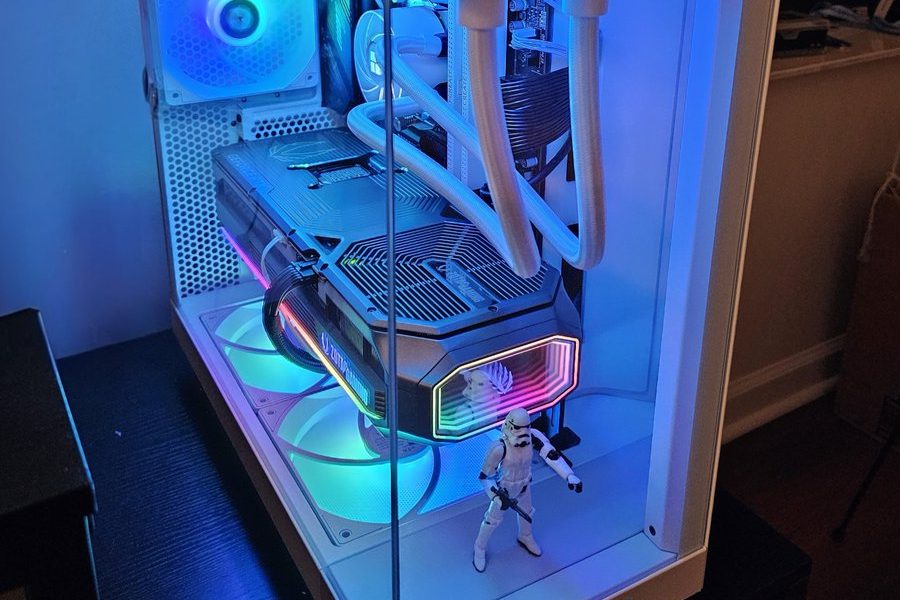
Dear Linux users who recently bought an NVIDIA RTX 5000 series card, this one is for you.
Getting my new RTX 5080 working on Linux turned into a proper fight with drivers. So I wrote it all down in a GitHub gist and tweeted it out with a Linus Torvalds GIF, because what else do you attach to an NVIDIA-on-Linux post? This post is that gist, cleaned up a bit.
I wasted 3 hours, so you don’t have to. You are welcome! :)
Once you know the steps, it’s a 10 minute job on pretty much any distro.
Use the open kernel modules
This is the big one. For RTX 5000 series (Blackwell) GPUs you HAVE to use NVIDIA’s open kernel modules. The proprietary driver branch does not support Blackwell.
NVIDIA has been moving towards open source GPU kernel modules for its newer platforms, and Blackwell is where that became mandatory. So whatever your distro, you want the package with “open” in the name. With the .run installer, pick the MIT/GPL open module option when it asks.
Step 1: Purge whatever driver you already have
Most common mistake? Installing new drivers on top of old ones. That causes conflicts which are a nightmare to untangle, so start clean.
On Debian-based distros (Ubuntu, Debian, Mint, Pop!_OS):
sudo apt-get remove --purge '^nvidia-.*'
sudo apt autoremove
sudo reboot
On Fedora/RHEL:
sudo dnf remove "*nvidia*"
sudo reboot
On Arch:
sudo pacman -Rs nvidia nvidia-utils
sudo reboot
And if you had installed from NVIDIA’s .run file earlier:
sudo nvidia-uninstall
sudo reboot
Step 2: Install the driver for your distro
Ubuntu and friends
First the build dependencies, so DKMS can compile the kernel module properly:
sudo apt install pkg-config libglvnd-dev dkms build-essential libegl-dev libegl1 libgl-dev libgl1 libgles-dev libgles1 libglvnd-core-dev libglx-dev libopengl-dev gcc makeThen add the graphics drivers PPA, which carries the latest tested drivers for new GPU architectures:
sudo add-apt-repository ppa:graphics-drivers/ppa
sudo apt update
Then install the open driver (yes, -open again!) and reboot:
sudo apt install nvidia-driver-570-open
sudo reboot
Debian (Bookworm 12, Trixie 13, Sid)
Debian doesn’t support PPAs, so the Ubuntu route won’t work here. Debian’s repos also don’t have packaged drivers that support Blackwell yet, so you have to use NVIDIA’s official .run installer.
Install the dependencies, including headers for your running kernel:
sudo apt update
sudo apt install pkg-config libglvnd-dev dkms build-essential libegl-dev libegl1 libgl-dev libgl1 libgles-dev libgles1 libglvnd-core-dev libglx-dev libopengl-dev gcc make linux-headers-$(uname -r)
Download the driver. Check the NVIDIA Unix drivers page for the latest production branch version first. Anything 570 or newer supports Blackwell.
wget https://us.download.nvidia.com/XFree86/Linux-x86_64/570.124.04/NVIDIA-Linux-x86_64-570.124.04.runBlacklist nouveau so it doesn’t grab the card:
echo "blacklist nouveau
options nouveau modeset=0" | sudo tee /etc/modprobe.d/blacklist-nouveau.conf
sudo update-initramfs -u
Now switch to a TTY (Ctrl+Alt+F3), stop your display manager and run the installer:
sudo systemctl stop gdm3      # GNOME/GDM
# or
sudo systemctl stop sddm      # KDE/SDDM
# or
sudo systemctl stop lightdm   # LightDM

chmod +x NVIDIA-Linux-x86_64-570.124.04.run
sudo ./NVIDIA-Linux-x86_64-570.124.04.run
In the installer, accept the licence. When it asks which kernel modules to install, pick the open (MIT/GPL) ones. Blackwell won’t work without them. Take the defaults for the rest, let it update your X config, then sudo reboot.
Fedora/RHEL
Enable RPM Fusion (free and nonfree):
sudo dnf install https://download1.rpmfusion.org/free/fedora/rpmfusion-free-release-$(rpm -E %fedora).noarch.rpm
sudo dnf install https://download1.rpmfusion.org/nonfree/fedora/rpmfusion-nonfree-release-$(rpm -E %fedora).noarch.rpm
Then the open variant:
sudo dnf install akmod-nvidia-open xorg-x11-drv-nvidia-cuda
sudo reboot
Arch and derivatives
Easiest of the lot!
sudo pacman -S nvidia-open nvidia-utils
sudo reboot
Everything else
If your distro doesn’t package the drivers, use the same .run installer from the Debian section and choose the open kernel module option when it asks.
Step 3: Check that it worked
nvidia-smiYou should see driver version 570.x or newer, along with your card. Something like this:
+-----------------------------------------------------------------------------------------+
| NVIDIA-SMI 570.124.04 Driver Version: 570.124.04 CUDA Version: 12.8 |
|-----------------------------------------+------------------------+----------------------+
| GPU Name Persistence-M | Bus-Id Disp.A | Volatile Uncorr. ECC |
| Fan Temp Perf Pwr:Usage/Cap | Memory-Usage | GPU-Util Compute M. |
| | | MIG M. |
|=========================================+========================+======================|
| 0 NVIDIA GeForce RTX 5080 Off | 00000000:01:00.0 On | N/A |
| 0% 40C P8 15W / 360W | 512MiB / 16376MiB | 0% Default |
+-----------------------------------------+------------------------+----------------------+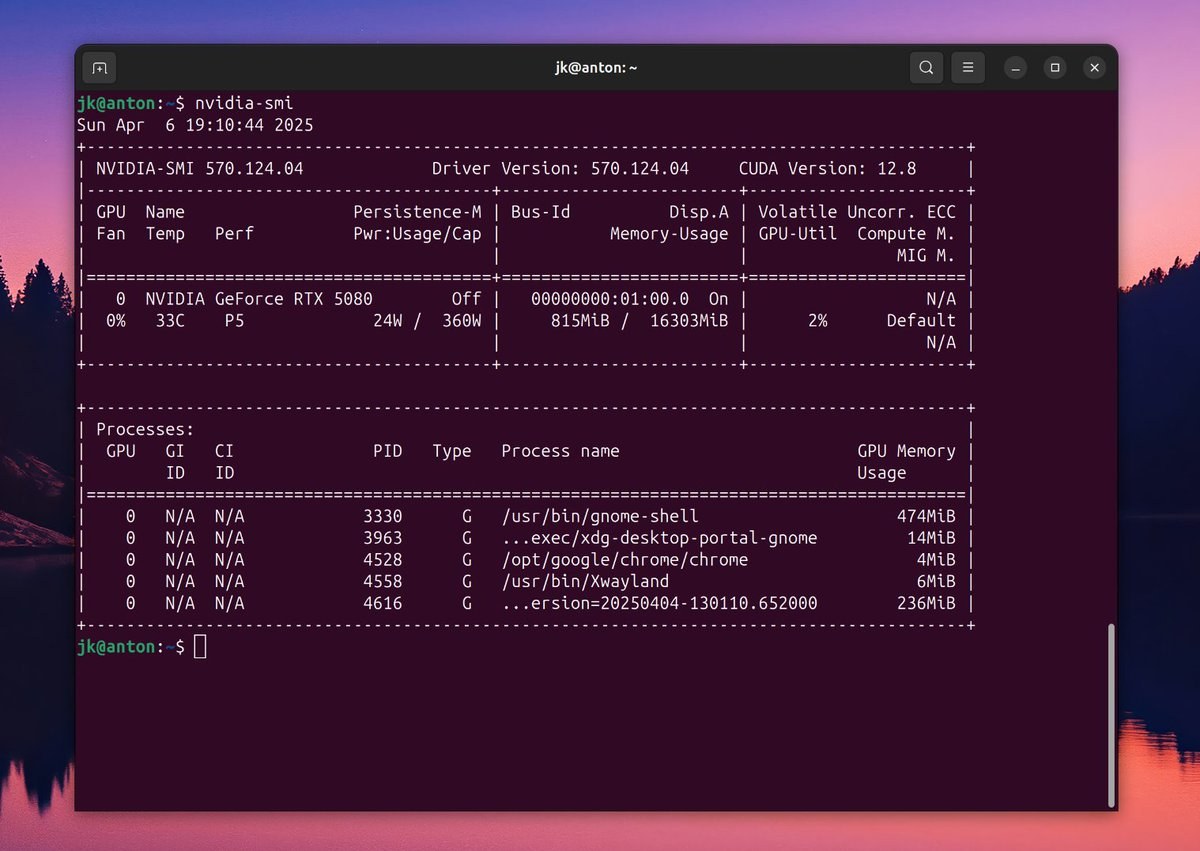 The first time it worked on my machine, on the 570-open driver. Finally!
If you see that, you’re done. 🤓
When it doesn’t work
The gist has every command for these spelled out. This is the short version.
“NVIDIA-SMI has failed because it couldn’t communicate with the NVIDIA driver”
Go down this list in order:
- Is the module even loaded?
lsmod | grep nvidia. If nothing shows up, look atsudo dmesg | grep -i nvidiafor the reason. - Is Secure Boot on?
mokutil --sb-state. If yes, you either sign the kernel modules (next section) or turn Secure Boot off in the BIOS. - Do your kernel headers match your running kernel? Compare
uname -rwithls /usr/src/linux-headers-*. - Rebuild the DKMS modules with
sudo dkms autoinstall(orsudo dkms install nvidia/<your driver version>) and reboot. - Is nouveau still loaded?
lsmod | grep nouveau. If it is, blacklist it and rebuild the initramfs.
Secure Boot is on
With Secure Boot on, the kernel only loads modules signed with a key your firmware trusts. If you’d rather keep it on, the documented way is to enrol a Machine Owner Key (MOK). DKMS then signs the NVIDIA modules with that key every time it builds them.
On Ubuntu the driver package mostly handles this for you. It creates the key, asks you to set a one-time password, and MokManager comes up on the next reboot. Pick Enroll MOK, check the fingerprint, confirm with that password and reboot. Ubuntu’s Secure Boot docs walk through it.
On Debian, DKMS keeps its key at /var/lib/dkms/mok.key and the public half at /var/lib/dkms/mok.pub. The Debian wiki enrols it like this:
sudo mokutil --import /var/lib/dkms/mok.pub   # asks you to set a one-time password
sudo mokutil --list-new                       # check the key is queued for the next boot
sudo reboot
On reboot the MOK manager screen shows up. Choose Enroll MOK, confirm, type the password you just set, then let it boot. sudo dmesg | grep cert should show the key loading. If you went the .run route, this only covers the module if you let the installer register it with DKMS.
Laptops: GPU not detected at all
This one bites ASUS ROG and Zephyrus owners a lot, and anyone with a MUX switch or a dual boot with Windows. The dGPU can be powered off when you boot into Linux, so nvidia-smi fails, lspci | grep -i nvidia shows nothing, and settings only see the iGPU.
On ASUS, boot into Windows, open Armoury Crate, set GPU mode to Standard or Optimized (not iGPU-only), switch off Silent mode in favour of Performance or Turbo, and reboot into Linux. On other laptops with a MUX switch, go into the BIOS/UEFI graphics settings and pick “Discrete GPU” or “dGPU mode” instead of Optimus or Hybrid.
On some ASUS laptops you can also force the dGPU on from Linux:
echo 0 | sudo tee /sys/devices/platform/asus-nb-wmi/dgpu_disable
echo 1 | sudo tee /sys/bus/pci/rescan
And on Arch, you can install the ASUS Linux tools and set the graphics mode to dedicated:
yay -S asusctl supergfxctl
sudo systemctl enable --now asusd
sudo systemctl enable --now supergfxd
supergfxctl -m dedicated
Black screen on HDMI/DisplayPort once X starts
The TTY works fine, but the moment X11 or Wayland starts, the monitor loses signal. Fun! Try these:
- Many laptops route HDMI/DP through the iGPU, so check the BIOS for a display output setting that uses the dGPU.
- Add
nvidia-drm.modeset=1toGRUB_CMDLINE_LINUX_DEFAULTin/etc/default/grub, runsudo update-gruband reboot. - If you only want the dGPU, blacklist the iGPU (
blacklist i915for Intel) and rebuild the initramfs. - Add an Xorg
OutputClassconfig in/etc/X11/xorg.conf.d/10-nvidia.confthat makes the NVIDIA card the primary GPU (full snippet in the gist). - Swap ports. Some people find DisplayPort works where HDMI doesn’t, or the other way round.
- In the BIOS, set Primary Display to PCIe/PEG instead of Auto or iGPU, and enable Above 4G Decoding and Re-Size BAR.
A phantom “Unknown Display”
If a ghost “Unknown Display” shows up in Settings after installing, sudo rm /dev/dri/card0, then log out and back in.
Wayland not available
On GNOME, make sure WaylandEnable=true is uncommented in /etc/gdm3/custom.conf (or /etc/gdm/custom.conf), then:
sudo ln -s /dev/null /etc/udev/rules.d/61-gdm.rules
sudo reboot
On KDE Plasma, add DisplayServer=wayland under [General] in /etc/sddm.conf.
CUDA and ML frameworks
For ML work, install CUDA after the driver: sudo apt install nvidia-cuda-toolkit on Ubuntu/Debian, sudo dnf install cuda on Fedora, sudo pacman -S cuda on Arch. Check it with nvcc --version.
Blackwell needs CUDA 12.8 or newer, so check that your framework builds support it before you upgrade anything.
For PyTorch, take the command from the install selector on pytorch.org rather than copy-pasting some old snippet, and make sure you pick a CUDA 12.8 or newer build. Older ones like cu121 won’t cut it on these cards.
Why is this still so painful?
Back in 2012, Linus Torvalds famously gave NVIDIA the middle finger during a talk and called it the single worst company the Linux folks had ever dealt with. (Here’s the clip from that talk.) His complaint was that NVIDIA sold millions of chips for Linux-based devices but wouldn’t work with the open source community.
The fun bit is that NVIDIA is now moving towards open source kernel modules, which is exactly why Blackwell needs the -open driver. That’s progress, but there’s still some way to go, or this post wouldn’t need to exist. Open source+++
If something here breaks on your setup, leave a comment on the gist.
Keep reading
Saving a 7-year-old HP laptop from the landfill with Zorin OS
A laggy HP 15 with an AMD A6 got fresh thermal paste, 4 GB more RAM, a new battery and Zorin OS 17. Here's what I did and what's still on the list.
My new hard drive ritual: badblocks, TLER and the SMR check
What a new hard drive goes through before it joins my NAS: a badblocks burn-in in tmux, TLER via smartctl, and the CMR, SMR and shucking checks.
A rack server with no rack: my Dell PowerEdge R510
Two Xeon X5675s, 64 GB of ECC RAM, a PERC H310 crossflashed to IT mode and a CRT for a console. My first month with a Dell R510.
Leave a comment